
By the end of this lesson
Tell a local terminal apart from a remote shell and explain what a VPS does.
Before you start
- A computer with a web browser.
Three words to know
- Terminal
- An application where you type commands and read their results.
- Shell
- The program that interprets your commands. This course uses Bash on the VPS.
- VPS
- A rented virtual server: another computer that stays available independently of your laptop.
1. Two computers, two places to work
A terminal window can control your own computer or a remote server. Opening Terminal does not automatically connect you to a VPS. After an SSH login, commands in that session run on the server. In a second window you can still work locally.
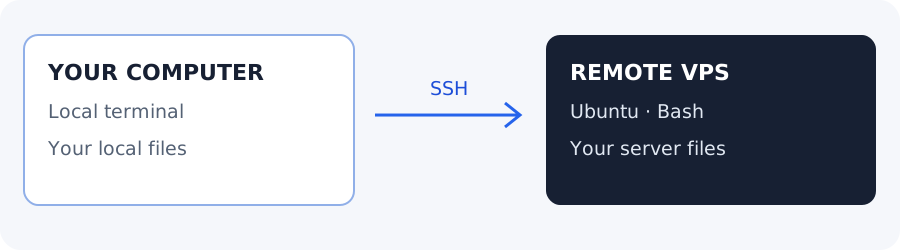
The labels above every command tell you where it belongs. LOCAL means your computer; VPS means the Ubuntu server after login. Expected output is an example to compare with your screen, not another command to paste.
2. Open a local terminal
- macOS: open the Terminal application.
- Windows: open PowerShell or Windows Terminal with a PowerShell tab.
- Linux: open your distribution’s terminal application.
A prompt is the text shown before you type. It may contain a username, computer name and current folder. Its appearance varies; do not copy a prompt such as learner@server:~$ as part of a command.
pwdWhat you should see · example output
A path on your own computer, such as /Users/yourname
Get-LocationWhat you should see · example output
A Path value, such as C:\Users\yourname
3. Read a command block
Read the instruction, confirm its location label, then copy only the command. Press Enter to submit it. A command can print a result and finish, ask a question, wait for input or keep running. If a tool is waiting unexpectedly, Ctrl+C usually interrupts the foreground command.
YOUR TURN
A small check before you continue
Open your terminal and identify which computer it controls right now. Is a path printed by pwd itself a command?
Show a suggested answer
Before SSH login it controls your local computer. A printed path is output; compare it with the example instead of pasting it back.
Sources and scope
Documentation and examples reviewed 2026-10-18. Provider screens, package versions and output wording can differ. Examples show expected outcomes; they are not a claim that OpenViST connected to your server or verified your setup.