
By the end of this lesson
Execute an .mjs file and explain where its code runs.
Before you start
- Node.js 24 with a terminal and plain-text editor; the browser-only lesson is labelled separately.
- No previous programming experience; no VPS purchase or paid API is required.
Three words to know
- Runtime
- The environment that executes JavaScript and supplies extra APIs.
- Source file
- A plain-text file containing program instructions.
- Console
- A place where a program can write messages.
1. One language, different environments
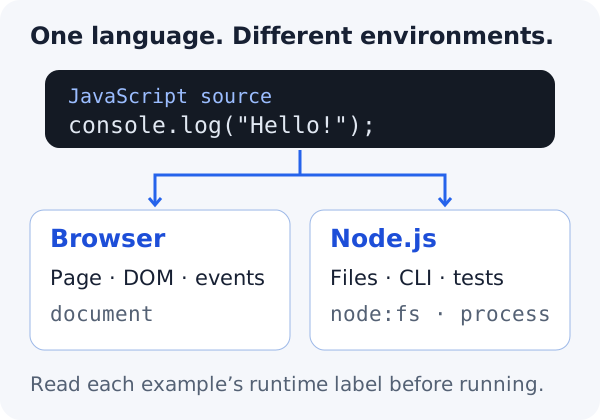
A browser can change a web page through document and other browser APIs. Node.js can read local files through its own APIs. JavaScript syntax is shared, but document is not available in a normal Node process, and node:fs is not a browser API. Reading this page does not execute the example on OpenViST. Most lessons use Node; lesson 18 provides a separate local browser example.
2. Check Node before starting
Use Node.js 24 for this route. If it is missing, choose your operating system in the official Node download instructions linked below. Do not assume your Ubuntu default nodejs package is the same version. Open a new terminal after installation if the command is not found. node --version is a terminal command, not JavaScript source.
node --version
What you should see · example output
v24.x.x (your patch version can differ)
3. Save and run one file
Create a fresh practice folder and a plain-text file named lesson.mjs. The .mjs extension explicitly selects JavaScript modules in Node, avoiding a package setting for now. Paste only source, without prompts or expected output. Save before running.
console.log("Hello, OpenViST!");
What you should see · example output
Hello, OpenViST!
node lesson.mjs
What you should see · example output
Hello, OpenViST!
If Node says the file cannot be found, check the terminal’s current folder and the exact filename. If you opened an interactive > prompt by running node without a filename, type .exit to return to the shell. The editor edits source; Node executes the saved source.
YOUR TURN
A small check before you continue
Change the greeting to Hello, learner! and rerun. Does a Node script automatically change the lesson page?
Show a suggested answer
The output changes in your terminal. Node has no automatic connection to this web page; editing browser content needs a browser program and its DOM APIs.
Sources and scope
Documentation and examples reviewed 2026-10-18. Provider screens, package versions and output wording can differ. Examples show expected outcomes; they are not a claim that OpenViST connected to your server or verified your setup.