
By the end of this lesson
Save and execute a .py file and distinguish its output from commands you type.
Before you start
- Python 3.12 or a compatible newer Python 3 interpreter; no external packages.
- A terminal and a plain-text editor; no VPS purchase is required.
Three words to know
- Interpreter
- The program that reads and executes Python source.
- Source file
- A plain-text file containing code; .py is the usual Python extension.
- Output
- Text a running program writes, such as a greeting.
1. Choose where Python runs
A browser displaying this lesson does not execute Python. Use your own computer, or a practice Ubuntu VPS after SSH login. If Python is not installed, use the Python setup lesson in Terminal & VPS or the official installation documentation linked below. A code editor edits text; the interpreter runs it.
python3 --version
What you should see · example output
Python 3.12.x (your patch version may differ)
py -3 --version
What you should see · example output
Python 3.12.x (your version may differ)
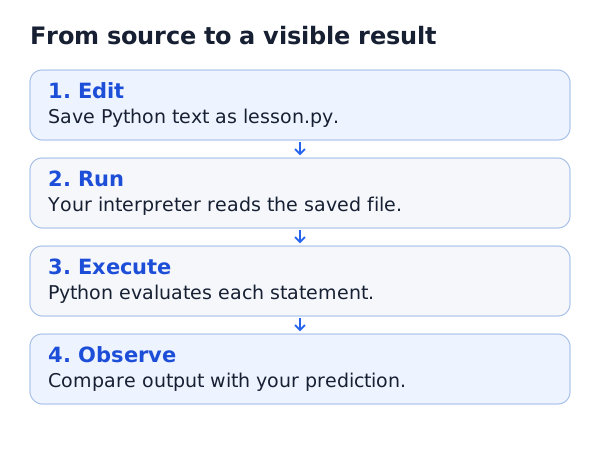
2. Save source, then run it
Create a practice folder and open a new plain-text file named lesson.py in your editor. Paste only the Python block below, without a terminal prompt or the expected output. Save the file before running. In the terminal, change to that folder using cd; the folder lesson in Terminal & VPS explains paths.
print("Hello, OpenViST!")
What you should see · example output
Hello, OpenViST!
python3 lesson.py
What you should see · example output
Hello, OpenViST!
On Windows use py -3 lesson.py. If your machine uses a different interpreter command, use that same command for every run. Later Bash examples use python3; they are not Python source. You can alternatively use the editor’s Run action after selecting the correct interpreter.
3. Understand mistakes early
print is a function: parentheses hold what it receives. Quotes make Hello, OpenViST! a string, meaning text. A Python >>> prompt means you opened interactive mode: type exit() to return to the terminal before running a file command. A message saying the file cannot be opened usually means the terminal is in the wrong folder or the file was not saved as lesson.py.
YOUR TURN
A small check before you continue
Change the greeting to Hello, learner! and run the file again. Which application edits the file, and which program executes it?
Show a suggested answer
Your editor changes the source; Python executes it. The new output is Hello, learner! If the old greeting remains, check that the file was saved and that you ran the same file.
Sources and scope
Documentation and examples reviewed 2026-10-18. Provider screens, package versions and output wording can differ. Examples show expected outcomes; they are not a claim that OpenViST connected to your server or verified your setup.