
Practical overview
When it fits
Use OpenAgentd when you want coding-agent work to happen on your computer with visible tool activity and diffs, or when you need the documented phone client to connect to a server you run.
Who it is for
- Developers who want an agent to work in a software project folder while they review its actions and code changes.
- Users who want to monitor or access their OpenAgentd sessions from an iPhone or iPad connected to their own server.
Documented uses
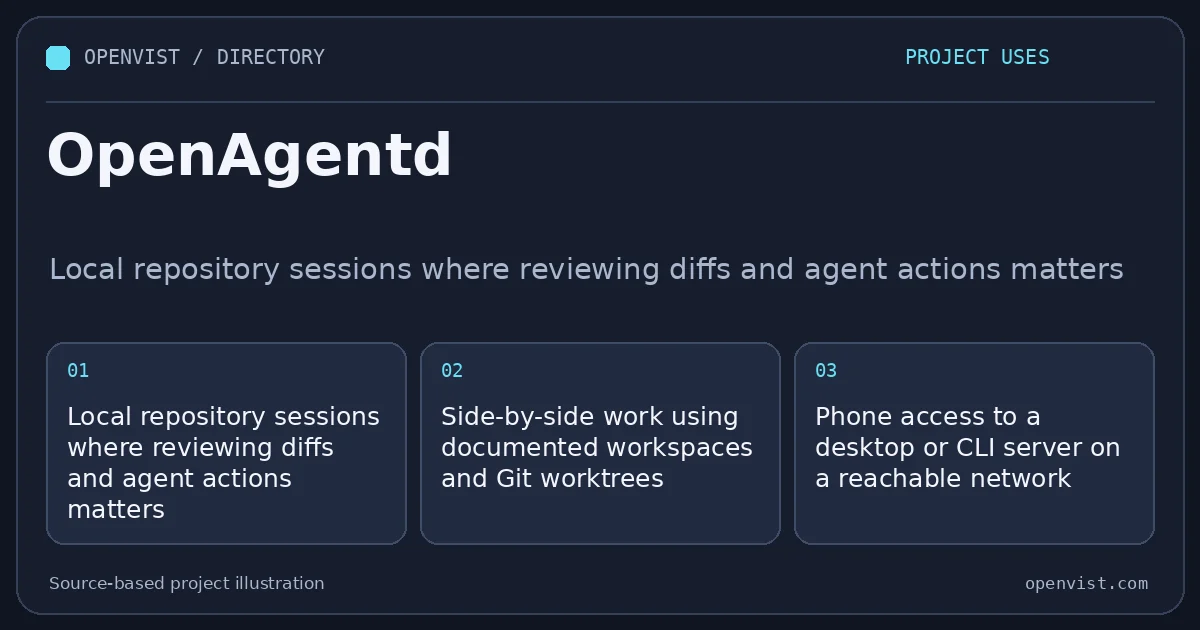
- Run an agent session that reads and edits repository files, executes commands and returns a diff to review.
- Inspect tool activity and step into a session before, during or after a turn.
- Connect a phone to the desktop app or CLI server to access OpenAgentd sessions.
Requirements & limits
The official privacy page says the app works fully without an account. The optional Remote control feature requires an OpenAgentd account and is in beta. The iOS app is listed as free on the App Store in the installation documentation.
- The desktop application includes its own backend; the iOS app instead requires a reachable desktop or CLI server.
- The iOS connection guide requires iOS or iPadOS 15.0 or later.
- The server has no built-in TLS; outside a trusted network, the iOS guide calls for HTTPS through a reverse proxy or a private network such as a VPN.
- Documentation describes workspaces, Git worktrees, helper agents, scheduling, plugins and web preview as additional capabilities.
Check current requirements in the official documentation. Source-based guidance does not mean OpenViST has run or independently tested this project.
Connect the iPhone app to a desktop OpenAgentd server
Pair the iOS app with OpenAgentd running in the desktop application on the same local network.
Before you start
- An iPhone or iPad running iOS or iPadOS 15.0 or later.
- OpenAgentd desktop app running on the computer and both devices on the same network.
Steps
In the desktop app, open Settings, choose Switch computer, and enable Allow devices on your network to connect.
Under Connect a device, use Show QR to display the connection code.
In the iOS app, scan the QR code, review the filled-in address and access key, then tap Connect.
Expected outcome
The phone connects to the desktop server and switches to that computer.
Guide limitations
- The desktop app must remain open; access ends when it quits.
- The desktop connection uses plain HTTP and is intended for a trusted network.
- For access from outside a trusted network, the server needs an HTTPS reverse proxy or a private network such as a VPN.
Sources & review
Source record details
- Source availability
- Active
- Sources checked
- 17 November 2026
- Original website title
- OpenAgentd: an open-source local coding agent you can watch · Official homepage title · retained in its source language