
Practical overview
When it fits
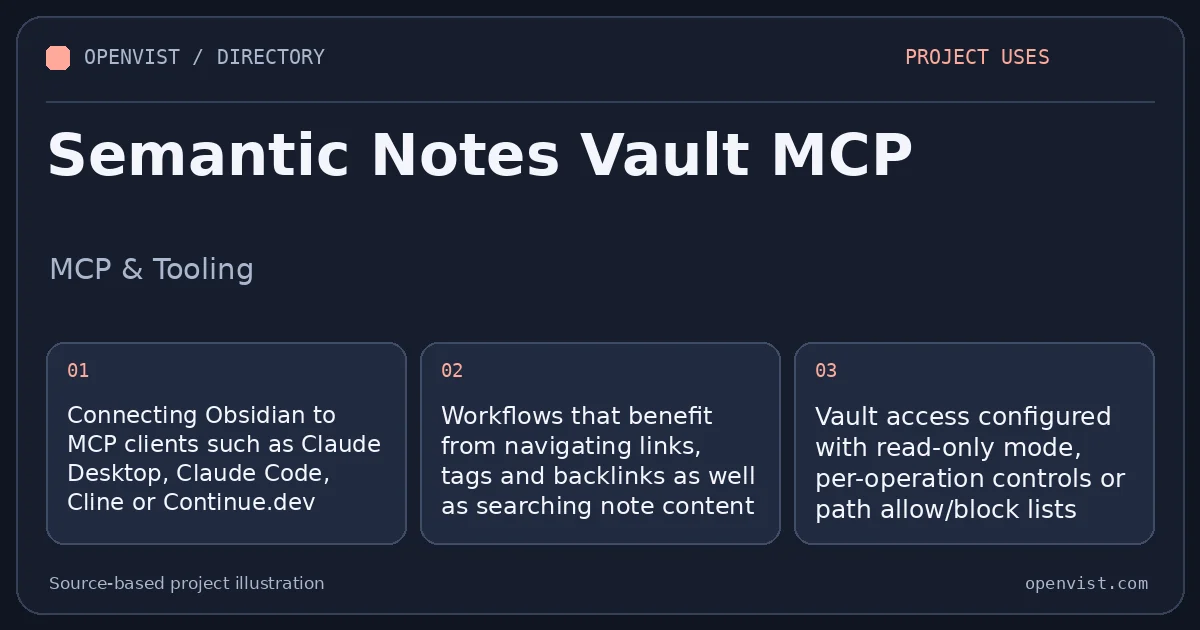
Use it when an MCP-compatible client needs direct access to Obsidian vault content for semantic search, note operations or graph-aware exploration.
Who it is for
- Obsidian users who want an MCP-compatible AI client to work with their vault.
- People building AI-assisted search or linked-note exploration workflows over Obsidian content.
Documented uses
- Search and retrieve relevant notes from a vault.
- Read, create, move, split or combine notes through AI tools.
- Traverse links, tags and backlinks to explore connected material.
Requirements & limits
The repository identifies the project as MIT-licensed and lists it in the Obsidian Community Plugin directory. The README describes a .mcpb setup path for Claude Desktop and HTTP configuration for other MCP clients.
- The server runs inside the Obsidian plugin rather than as a separately launched Node process.
- Clients connect over HTTP using a URL and API key; HTTPS uses a self-signed certificate that clients must explicitly trust.
- The README describes read-only mode, per-operation controls and path allow/block lists.
Check current requirements in the official documentation. Source-based guidance does not mean OpenViST has run or independently tested this project.
Connect Claude Desktop to an Obsidian vault
Install the plugin and configure Claude Desktop to connect to its MCP server.
Before you start
- An Obsidian vault
- Claude Desktop
- The plugin's .mcpb bundle and the URL and API key shown in its Settings tab
Steps
Install and enable the plugin through Obsidian Settings → Community plugins → Browse.
Download the .mcpb bundle from the plugin's Settings tab or its latest release.
Drag the bundle onto Claude Desktop, or double-click it, to open the install dialog.
Enter the URL and API key shown in the plugin's Settings tab, then save.
Expected outcome
Claude Desktop is configured to connect to the Obsidian plugin's MCP server.
Guide limitations
- Bundle file handling varies across operating systems; dragging the bundle onto Claude Desktop is an alternative if double-clicking does not open it.
Sources & review
Source record details
- Source availability
- Active
- Sources checked
- 13 November 2026
- Original website title
- aaronsb/obsidian-mcp-plugin · Official homepage title · retained in its source language