
Practical overview
When it fits
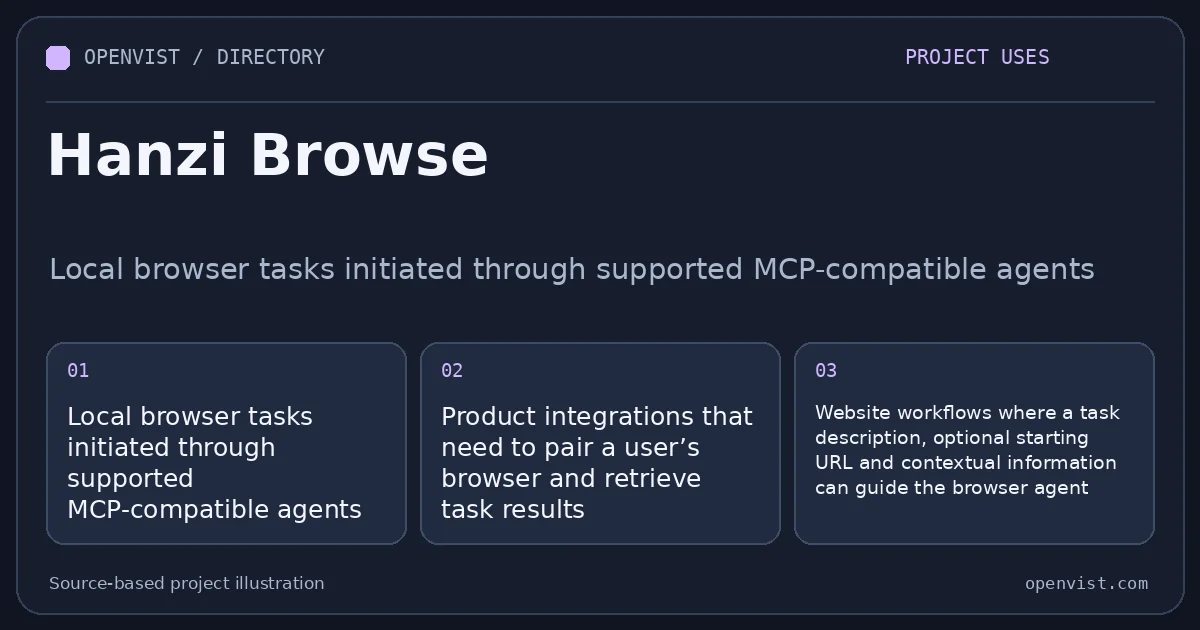
Use it when an AI agent or product needs to interact with a website in a browser, including a paired browser session, rather than only work with text provided directly to the model.
Who it is for
- People who want a supported coding agent to browse websites through a local Chrome setup.
- Developers adding browser-task workflows to an application.
- Teams whose users can pair a Chrome browser for website interactions.
Documented uses
- Ask an agent to navigate a website and read or extract information.
- Let an agent interact with pages using browser actions such as clicking and typing.
- Add browser pairing, task submission and results to a product workflow.
Requirements & limits
The service is described as free to start, with 20 free tasks per month and a charge of $0.05 per completed task afterward; errors are free. Local setup is available with a user-provided model. API use requires developer-console sign-in and an API key.
- Choose local MCP setup for direct use with a supported agent; choose the API and SDK for an application integration.
- The API route depends on users installing the Chrome extension and pairing their browser.
- The API exposes task status, answers, steps and screenshots; the SDK provides typed methods and automatic polling.
- API keys differ by use: secret keys are for server-side access, while publishable keys are limited to browser pairing and session listing.
Check current requirements in the official documentation. Source-based guidance does not mean OpenViST has run or independently tested this project.
Set up Hanzi Browse for a local coding agent
Configure the Chrome extension and MCP server for a supported local agent.
Before you start
- A Chrome browser and the Hanzi Browse extension.
- A supported agent: Claude Code, Cursor, Windsurf, Claude Desktop or Codex.
- A user-provided model and supported credentials or API configuration.
Steps
Run the documented setup command: the command below.
npx hanzi-browse setupAllow setup to check for the extension, scan for supported agents and add Hanzi Browse as an MCP server.
Provide or confirm the credentials and model endpoint configuration when prompted.
Expected outcome
The supported local agent is configured with Hanzi Browse as an MCP server and can receive browser tasks.
Guide limitations
- This guide covers setup; it does not verify a completed browser task.
- The documentation says the Chrome extension is needed for browser pairing.
Pair a browser and submit an API task
Connect a user’s Chrome browser to an application and request a browser task through the API.
Before you start
- Developer-console sign-in and an API key.
- A user with the Hanzi Browse Chrome extension installed.
- An application able to make authenticated REST API requests.
Steps
Create a browser-pairing token and provide the user with the pairing link.
List browser sessions and identify the connected session.
Submit a task with its description and connected browser-session ID; include a starting URL or context if needed.
Poll the task status until it is no longer running, then use the returned answer.
Expected outcome
The application can retrieve the answer and status for a task run in the paired browser.
Guide limitations
- Pairing tokens expire after five minutes.
- The documentation says the Chrome extension is required for pairing.
- API calls other than the health endpoint require authentication.
Sources & review
Source record details
- Source availability
- Active
- Sources checked
- 20 November 2026
- Original website title
- Hanzi Browse — Browser automation for Claude Code, Cursor & Codex · Official homepage title · retained in its source language