
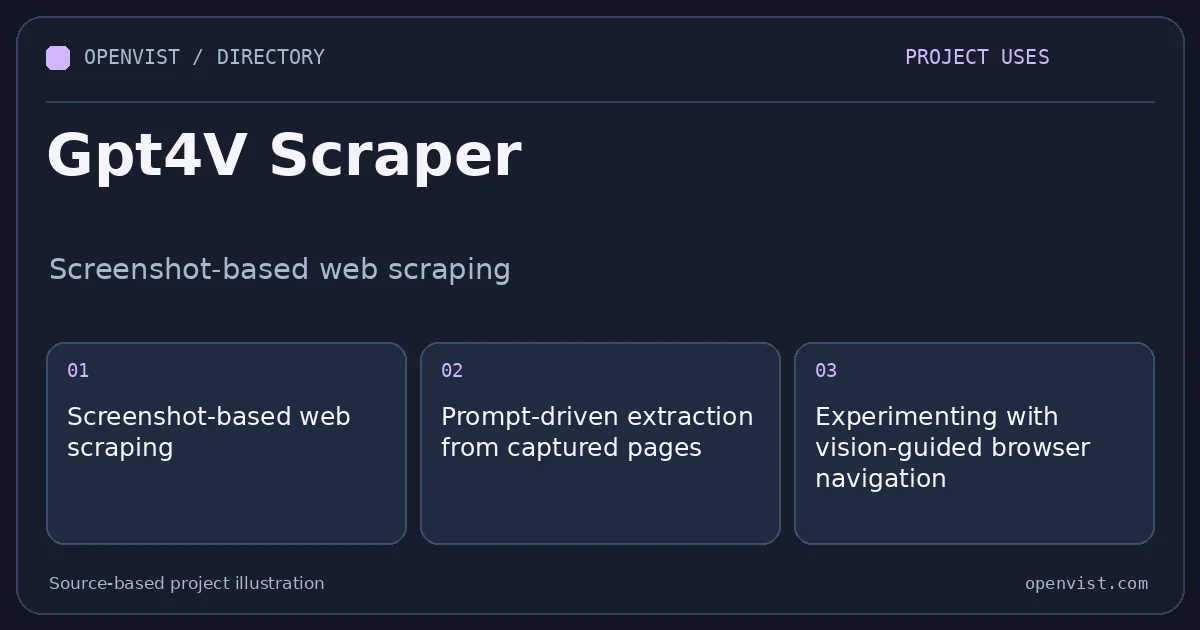
Practical overview
When it fits
Use it when a browser-based workflow needs a screenshot, prompt-directed extraction, or conversational navigation, and you can configure the required browser, environment and API key.
Who it is for
- Developers building browser-automation workflows
- Users who need full-page screenshots and prompt-directed text extraction from accessible web pages
- People exploring conversational, vision-based browser navigation
Documented uses
- Capture a full-page screenshot from a supplied URL.
- Extract requested information from a page screenshot using a prompt.
- Guide browser activity through a conversational Bing-search workflow.
Requirements & limits
The repository is public. The documented setup requires an OpenAI API key; no service pricing or hosted access terms are specified.
- The project separates its Node/Puppeteer screenshot stage from a Python image-to-text stage.
- The screenshot workflow requires local Chrome or Chrome Canary path and profile configuration.
- The README describes Bing-guided interaction as a separate workflow launched with web_agent.js.
- The project describes a Puppeteer stealth plugin, but this is not a guarantee of access or acceptance by target websites.
Check current requirements in the official documentation. Source-based guidance does not mean OpenViST has run or independently tested this project.
Set up and capture a page screenshot
Configure the documented Node/Puppeteer workflow and save a screenshot of a supplied URL.
Before you start
- Node.js and npm
- An OpenAI API key, added to a .env file based on .env.template and loaded into the environment
- Chrome or Chrome Canary, with its executable path and user-data directory configured in snapshot.js
Steps
Run npm i to install the project dependencies.
Copy .env.template to .env, add OPENAI_API_KEY, and load the environment as described in the README.
Set the browser executablePath and userDataDir in snapshot.js, substituting your system username where needed.
Run node snapshot.js "" with the target URL; adjust the timeout setting in the script if needed.
Expected outcome
The README says the workflow saves snapshot.jpg in the project root.
Guide limitations
- The README gives browser-path examples for macOS, Windows and Linux; configuration depends on the local browser installation.
- For pages requiring sign-in, configure the browser with an already authenticated session.
- The README does not guarantee that target sites permit automated access.
Extract prompted text from a captured page
Configure the documented Python stage to capture a page and print prompt-directed text from its screenshot.
Before you start
- The screenshot workflow and its browser/API configuration
- Python 3 and the packages listed in requirements.txt
Steps
Create and activate a Python virtual environment using the README's example commands.
Install dependencies with pip install -r requirements.txt.
Edit gpt4v_scraper.py to provide a website URL and a system prompt for the information to extract.
Run the example function call or the edited script as described in the project files.
Expected outcome
The README describes snapshot.jpg being created and extracted text with contextual answers being displayed in the console.
Guide limitations
- The README does not specify a separate command for launching the edited Python workflow.
- Extraction depends on the page being accessible through the configured browser session.
Sources & review
Source record details
- Source availability
- Active
- Sources checked
- 20 November 2026
- Original website title
- vdutts7/gpt4V-scraper · Official homepage title · retained in its source language