
Practical overview
When it fits
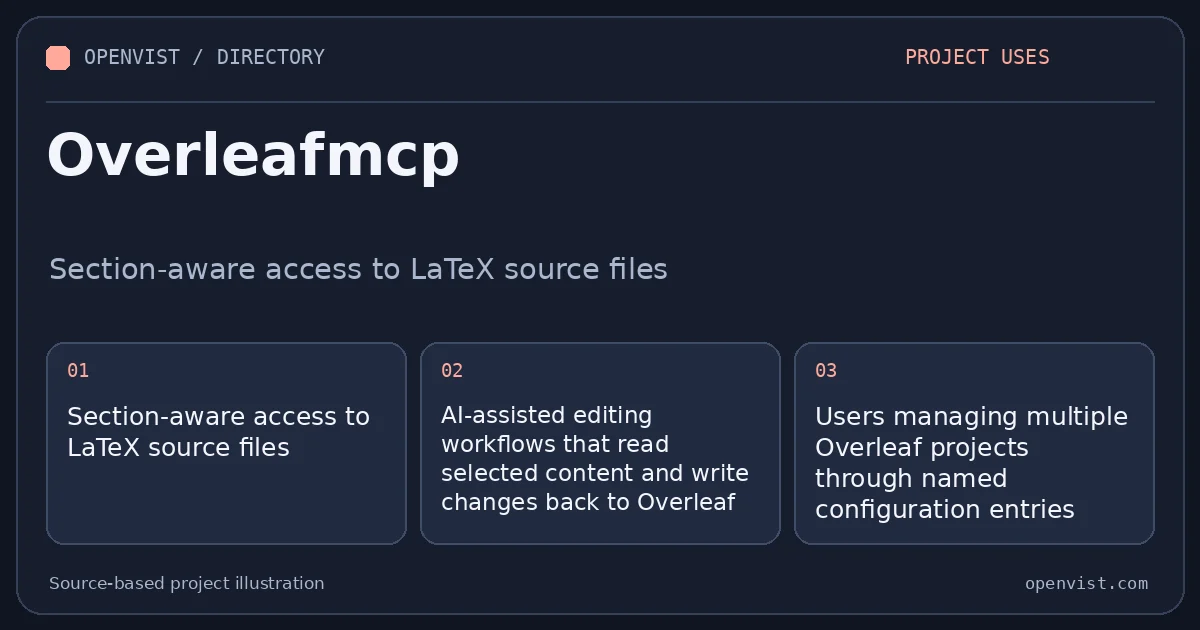
Use it when an MCP-compatible assistant needs direct file and section-level access to an Overleaf project, including writing revised content back through the project’s Git integration.
Who it is for
- Researchers and students who manage LaTeX documents in Overleaf and want compatible AI clients to inspect or edit project files.
- Developers configuring MCP tools for Claude Desktop, Cursor, Windsurf, or another MCP client.
Documented uses
- List, read and write files in an Overleaf project.
- Parse LaTeX sections and subsections and extract a section by title.
- Review an overview of project structure and status.
- Configure access to one project or select among multiple named projects.
Requirements & limits
The primary setup requires an Overleaf project ID and Git token. The repository is public and MIT-licensed; its quick-start configuration uses npx and does not require cloning the repository or running npm install.
- The server uses Overleaf Git integration, and its token grants full read/write access to the project.
- The quick-start environment-variable configuration handles one project; multi-project use relies on a projects.json file and projectName selection.
- The README documents Claude Desktop configuration across Windows, macOS and Linux, and identifies Claude Desktop, Cursor and Windsurf as compatible clients.
- The repository recommends using OVERLEAF_GIT_TOKEN_FILE instead of embedding a token in client configuration when that configuration is backed up or synced.
- A section write supplies the full content for that section, while file and section edits can include a commit message.
Check current requirements in the official documentation. Source-based guidance does not mean OpenViST has run or independently tested this project.
Connect one Overleaf project to Claude Desktop
Configure the MCP server to access one Overleaf project from Claude Desktop.
Before you start
- Claude Desktop
- Node.js/npm with npx available
- An Overleaf project ID and Git token
Steps
Open the Overleaf project and obtain its project ID from the project URL; create a Git token under Account Settings → Git Integration.
Add the repository’s MCP server entry to Claude Desktop configuration, using the command below and setting
OVERLEAF_PROJECT_IDandOVERLEAF_GIT_TOKEN. On Windows, usecmdwith/cbeforenpx.npx -y @mjyoo2/overleaf-mcpRestart Claude Desktop; the README says the Overleaf tools should then appear in its tools menu.
Expected outcome
Claude Desktop is configured with the Overleaf MCP tools for the specified project.
Guide limitations
- The environment-variable quick start configures one project only.
- The Git token grants full read/write access to the project and should be handled like a password.
- The documented configuration is for Claude Desktop; the repository also names Cursor and Windsurf, but this recipe does not configure them.
Configure named Overleaf projects
Set up a projects.json file so MCP tool calls can select among multiple Overleaf projects.
Before you start
- The MCP server and an MCP client configuration
- An Overleaf project ID and Git token for each project
Steps
Create
projects.jsonin the documented user configuration directory:%APPDATA%\overleaf-mcp\on Windows or~/.config/overleaf-mcp/on macOS and Linux.Add a
projectsobject containing named entries with each project’sname,projectIdandgitToken; use thedefaultkey for the fallback project.Configure Claude Desktop to run the server without the single-project
envblock.In a tool call, supply the chosen entry as
projectName; if omitted, thedefaultentry is used.
Expected outcome
The server can address configured projects by name in tool calls.
Guide limitations
- The README’s multi-project setup uses a local configuration file containing Git tokens; protect the file and credentials.
- This recipe documents configuration and selection, not a successful connection test.
Sources & review
Source record details
- Source availability
- Active
- Sources checked
- 20 November 2026
- Original website title
- mjyoo2/OverleafMCP · Official homepage title · retained in its source language