
Practical overview
When it fits
Use it when you want an MCP-compatible assistant to work with Telegram dialogs and messages through the documented server tools.
Who it is for
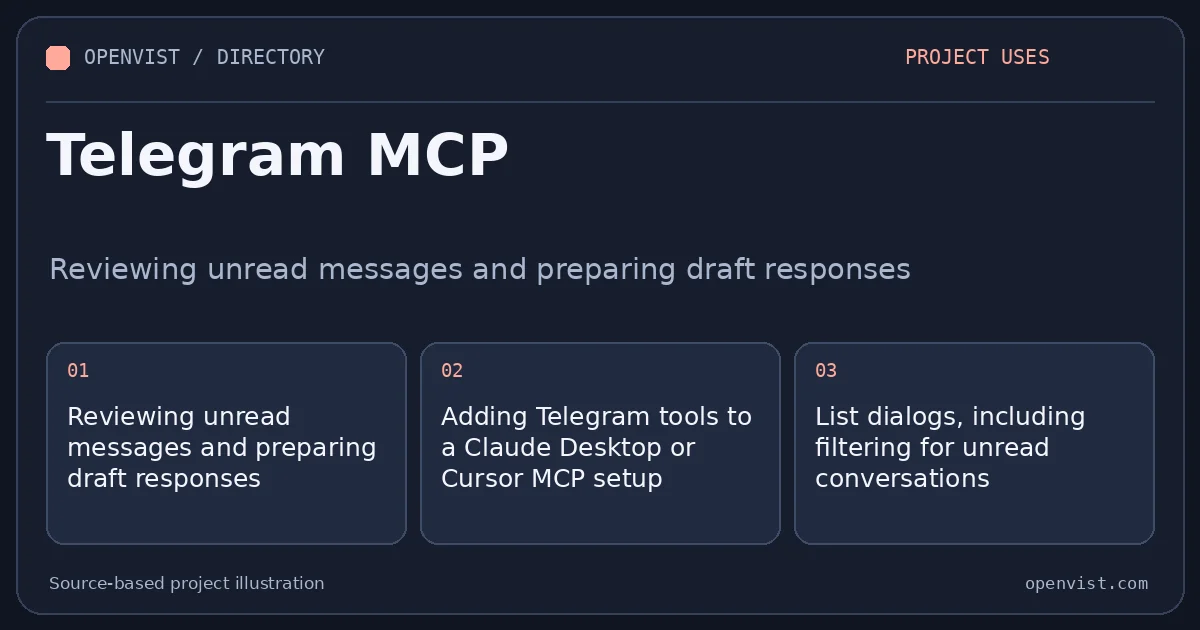
- People who want an MCP-compatible assistant to help review and organize Telegram conversations.
- Developers configuring a Telegram-connected workflow in Claude Desktop or Cursor.
Documented uses
- List dialogs, including filtering for unread conversations.
- Retrieve messages from a selected dialog and review unread chats.
- Mark a dialog as read.
- Prepare and send draft messages to a dialog.
- Retrieve current Telegram account information.
Requirements & limits
Self-hosted software with an MIT license. Telegram API credentials and account authorization are required before use.
- The documented send operation is described as sending draft messages.
- The README provides a schema-version override for clients that do not support JSON Schema Draft 2020-12.
- Building from source requires Go 1.24 or later and GOBIN in PATH.
Check current requirements in the official documentation. Source-based guidance does not mean OpenViST has run or independently tested this project.
Set up Telegram MCP with Claude Desktop
Authorize the server with Telegram and add it to Claude Desktop’s MCP configuration.
Before you start
- Telegram API ID and hash
- Telegram phone number and access to the verification code
- Telegram MCP installed
- Claude Desktop
Steps
Obtain an API ID and hash from Telegram’s API page.
Run the Telegram MCP authorization command with the API ID, API hash and phone number, then enter the code received from Telegram.
Add a Telegram MCP server entry to Claude Desktop’s configuration, including the API credentials and the server command.
Expected outcome
Claude Desktop has a configuration entry for the Telegram MCP server, authorized to connect to Telegram.
Guide limitations
- The README’s configuration example also uses PATH and HOME environment values.
- The project warns that misuse of the Telegram API may result in account suspension.
Sources & review
Source record details
- Source availability
- Active
- Sources checked
- 17 November 2026
- Original website title
- chaindead/telegram-mcp · Official homepage title · retained in its source language