
Practical overview
When it fits
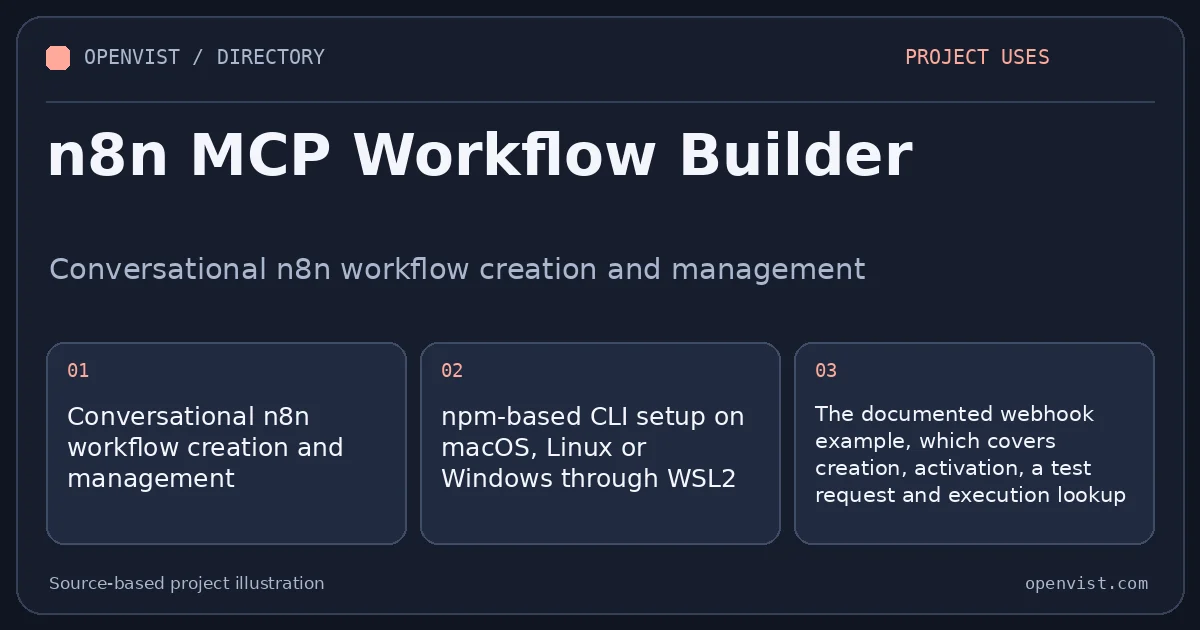
Use it when you want an MCP-connected assistant to handle n8n workflow tasks conversationally, such as creating a webhook workflow or checking its recent execution details.
Who it is for
- n8n users who want to create or change workflows by describing tasks to an AI assistant.
- Developers who want an npm-installable MCP server to connect an assistant with n8n.
Documented uses
- Create an n8n workflow through an assistant conversation.
- Manage an existing workflow through an MCP-connected assistant.
- Ask an assistant to retrieve workflow execution information.
- Set up the server globally, within a project, or for one-time use with npx.
Requirements & limits
- The installation guide requires Node.js 14 or later and npm 7 or later, with newer versions recommended.
- The documented Windows installation route is WSL2 rather than native Windows.
- Global, local-project and one-time npx installation methods are described.
- The webhook example assumes an assistant connected to the MCP server and an n8n staging environment.
Check current requirements in the official documentation. Source-based guidance does not mean OpenViST has run or independently tested this project.
Install and start the MCP server with npm
Install the package and launch its MCP server using one of the documented npm methods.
Before you start
- Node.js 14.0.0 or later; Node.js 18.x or 20.x is recommended.
- npm 7.0.0 or later; npm 9.x or 10.x is recommended.
- macOS, Linux, or Windows 10/11 with WSL2; native Windows installation is not officially supported.
Steps
Choose global installation with the command below, local installation with the command below, or one-time execution with the command below.
npm install -g @kernel.salacoste/n8n-workflow-buildernpm install @kernel.salacoste/n8n-workflow-buildernpx @kernel.salacoste/n8n-workflow-builderFor a global installation, start
n8n-workflow-builder; for local or one-time use, run the package with npx as shown in the installation guide.Confirm the startup output reports the MCP server listening on stdio, then stop it with Ctrl+C when finished.
Expected outcome
The MCP server starts and reports that it is ready to accept requests.
Guide limitations
- The documented Windows route uses WSL2; native Windows installation is not officially supported.
- The startup procedure does not configure an AI assistant or an n8n instance.
Create and inspect a webhook workflow through an assistant
Follow the documented example stages for creating a webhook workflow, activating it and requesting execution details.
Before you start
- An installed and configured MCP server connected to an assistant, as assumed by the example.
- An n8n staging environment referenced by the example.
Steps
Ask the assistant to create a staging workflow that receives requests and logs them; the example uses the
create_workflowMCP tool.Ask the assistant to activate the created workflow; the example uses
activate_workflow.Send an HTTP POST request to the workflow webhook using the example's JSON request format.
Ask the assistant to show the most recent execution; the example uses
list_executions.
Expected outcome
The example describes a webhook workflow that logs incoming data and an assistant request to retrieve its latest execution details.
Guide limitations
- The guide is an illustrative workflow example and does not establish compatibility with every assistant or n8n environment.
- The example identifies authentication as a follow-up step for the webhook.
Sources & review
Source record details
- Source availability
- Active
- Sources checked
- 16 November 2026