
Practical overview
When it fits
Use it when you want model chat in Sublime Text and can configure a supported local service or provider API. Its Build- and LSP-output commands are relevant when you want diagnostic text included in a question.
Who it is for
- Sublime Text users who want model-assisted conversation alongside their code.
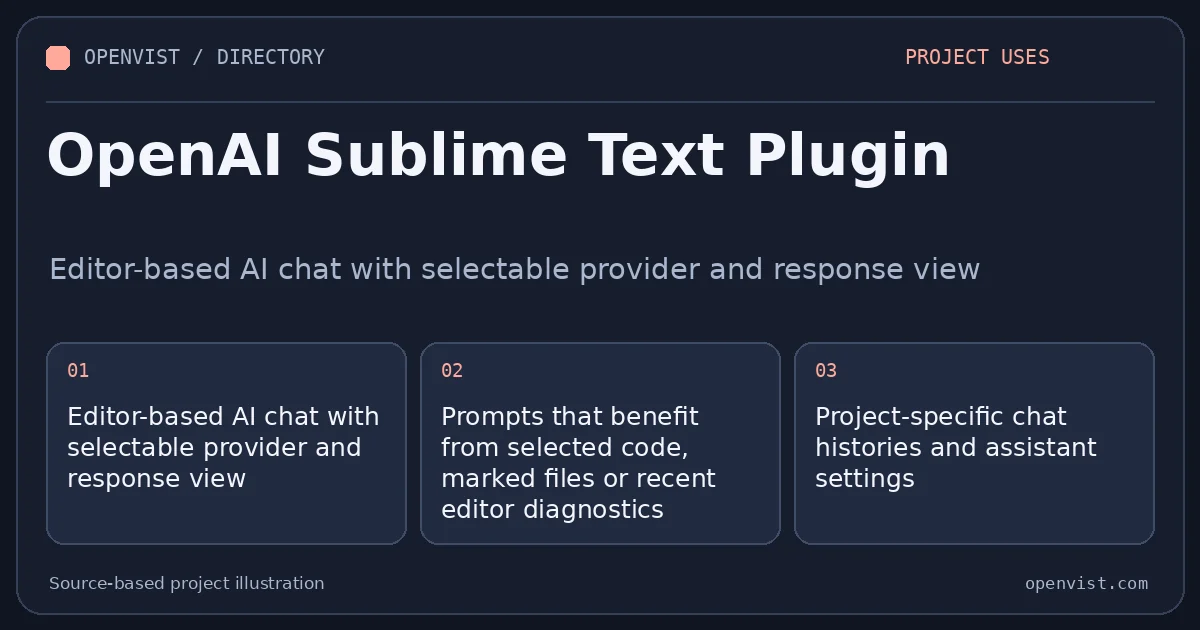
- Developers who want to include selected code, files, build output or LSP diagnostics in prompts.
- Users who prefer to connect an editor interface to a supported local model service or remote provider.
Documented uses
- Ask a model about a selected code region or other editor text.
- Send marked files as additional prompt context.
- Ask for help interpreting recent Build results or LSP diagnostics.
- Keep separate chat histories and assistant settings for projects.
- Read responses inline or in a dedicated chat view.
Requirements & limits
The repository is public and specifies an MIT license. A remote provider API key or an installed local model service is required, depending on the chosen assistant.
- The README names Sublime Text build 4205 or newer for the current Python 3.14 plugin host, with a frozen 6.1.0/Python 3.8-compatible release line for builds 4050–4204.
- Provider choice affects setup: the requirements list local llama.cpp, Ollama or llmman services, or a remote provider API key; Anthropic and Google Gemini keys are optional depending on configuration.
- Selected text, marked files, Build output and LSP output can supply context; marked file contents are sent with the prompt.
- Responses can be shown in an output panel, a dedicated tab or an inline Phantom. Markdown syntax highlighting is documented for chat mode.
Check current requirements in the official documentation. Source-based guidance does not mean OpenViST has run or independently tested this project.
Install the plugin through Package Control
Add OpenAI Sublime Text Plugin to Sublime Text using Package Control.
Before you start
- Sublime Text
- Package Control installed in Sublime Text
Steps
Open the Command Palette and choose “Package Control: Install Package.”
Enter “OpenAI” and press Enter.
Expected outcome
Package Control installs the plugin as an unpacked directory, including shared chat libraries under plugins/vendor.
Guide limitations
- The README specifies Sublime Text build 4205 or newer for the current Python 3.14 plugin host; builds 4050–4204 use a frozen 6.1.0/Python 3.8-compatible release line.
- Using the plugin also requires a local model service or a remote provider API key, depending on the assistant setup.
Send a prompt from the Sublime Text Command Palette
Submit a question with optional selected-text context and choose how to view the response.
Before you start
- The plugin installed in Sublime Text
- A configured assistant using a supported model provider or compatible server
Steps
Optionally select text in the current file to include it in the prompt.
Run “OpenAI: Chat Model Select” to choose an assistant and an inline Phantom or chat-view output mode, or run “OpenAI: New Message” to reuse the active assistant and mode.
Enter a prompt in the multiline input panel and submit with Cmd+Enter on macOS or Ctrl+Enter on Windows or Linux.
Read the response in the output panel or inline overlay; use “OpenAI: Open in Tab” to move the chat to a dedicated tab.
Expected outcome
The plugin sends the prompt with the selected text and any files already marked for context, then displays the model response in the chosen view.
Guide limitations
- “OpenAI: New Message” reuses the assistant and output mode last selected or currently active.
- The README describes sending marked files as context; their contents are included with the prompt.
Sources & review
Source record details
- Source availability
- Active
- Sources checked
- 13 November 2026
- Original website title
- yaroslavyaroslav/OpenAI-sublime-text · Official homepage title · retained in its source language