
Practical overview
When it fits
Use Neural when you want generation or explanations in a Vim or Neovim editing session and can configure a supported model provider.
Who it is for
- Vim and Neovim users who want model-assisted text or code generation within the editor.
- Developers who want to ask for explanations of selected code or text without moving it to a separate interface.
- Users configuring OpenAI or an OpenAI-compatible local model server as the plugin’s provider.
Documented uses
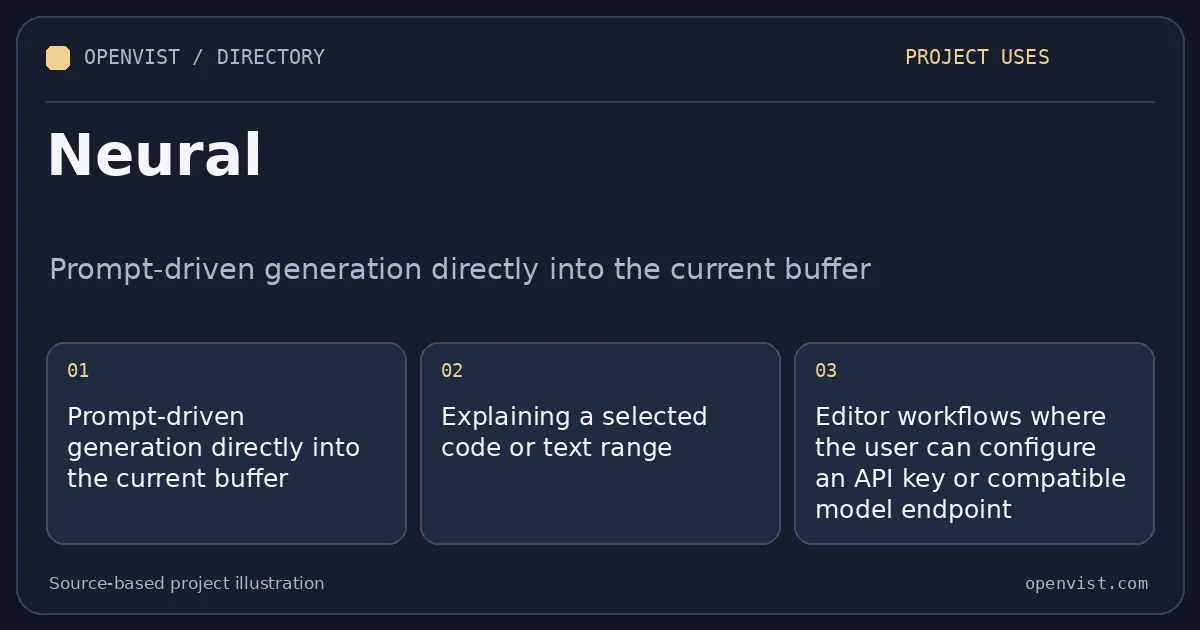
- Generate code, text, or Python docstrings from an editor prompt.
- Explain visually selected code or text with `:NeuralExplain`.
- Revise comments for spelling or grammar and generate ideas.
- Connect Neural to OpenAI or configure an OpenAI-compatible provider URL for a local model or server.
Requirements & limits
Requires Vim 8.0+ or Neovim 0.8+, Python 3.10+, and a configured machine-learning provider. The documented OpenAI setup requires an API key.
- Neural is a Vim/Neovim plugin, not a standalone model; the user must configure a provider.
- The default OpenAI provider requires an API key; the README also documents an OpenAI-compatible URL for local models or other compatible servers.
- The project says input is sent to third-party servers for model queries. Its secret redaction is described only as a basic attempt.
- nui.nvim, significant.nvim, and ALE are optional integrations for UI, animated signs, and generated-code correction respectively.
- The README lists support for Linux, macOS, and Windows, and specifies Vim 8.0+, Neovim 0.8+, and Python 3.10+.
Check current requirements in the official documentation. Source-based guidance does not mean OpenViST has run or independently tested this project.
Configure Neural with an OpenAI API key
Install the plugin and configure its documented OpenAI provider.
Before you start
- Vim 8.0+ or Neovim 0.8+
- Python 3.10+
- An OpenAI API key
Steps
Add the Neural repository to the editor runtime path using a documented package method such as Vim or Neovim packload, vim-plug, or Vundle.
Configure Neural’s OpenAI provider with the API key in Vimscript or Lua.
Run
:help neuralfor the plugin documentation.
Expected outcome
Neural is installed and configured to send requests through the OpenAI provider.
Guide limitations
- The API key and a configured machine-learning provider are required for use.
- Input is sent to third-party servers to query models.
- The documented installation and configuration steps do not include testing or validating a completed setup.
Sources & review
Source record details
- Source availability
- Active
- Sources checked
- 11 November 2026
- Original website title
- dense-analysis/neural · Official homepage title · retained in its source language