
Practical overview
When it fits
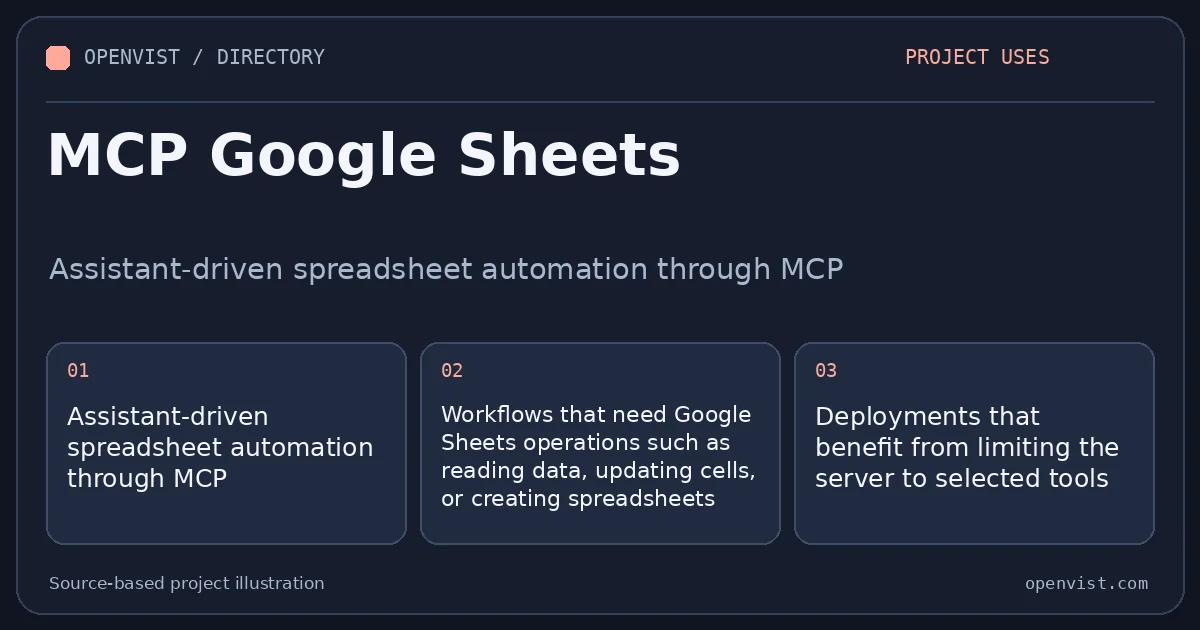
Use it when an MCP-compatible assistant needs a defined set of tools for working with Google Drive and Sheets rather than a separate spreadsheet interface.
Who it is for
- Developers connecting an MCP-compatible AI client to Google Sheets and Drive.
- Teams automating spreadsheet creation, lookup, reading or updates through an assistant.
Documented uses
- Create spreadsheets and locate existing files.
- Read spreadsheet data or formulas and update cells.
- Perform batch edits and manage rows, columns and sheets.
- Choose which spreadsheet tools are exposed to the connected client.
Requirements & limits
The server requires Google Cloud credentials and enabled Google Sheets and Drive APIs. The README recommends service-account authentication and also describes OAuth and environment-based credential options.
- Requires an MCP-compatible client to use its tools.
- Google API access depends on configured credentials and Drive sharing permissions.
- Offers 19 tools by default and supports filtering through
--include-toolsorENABLED_TOOLS. - The public GitHub repository specifies the MIT license.
Check current requirements in the official documentation. Source-based guidance does not mean OpenViST has run or independently tested this project.
Set up the server with a Google service account
Prepare the documented service-account authentication and MCP server launch configuration.
Before you start
- A Google Cloud project with the Google Sheets API and Google Drive API enabled.
- The Python tool runner uv/uvx installed.
- A Google service-account JSON key and a Drive folder shared with the service account.
Steps
Create a service account in Google Cloud, create a JSON key, and store the key file.
Create a Google Drive folder, note its folder ID, and share it with the service account email with Editor access.
Set SERVICE_ACCOUNT_PATH to the JSON key file path and DRIVE_FOLDER_ID to the folder ID.
Run
uvx mcp-google-sheets@latestand configure an MCP-compatible client to connect to the running server.
Expected outcome
A configured MCP server that an MCP-compatible client can connect to for Google Sheets and Drive operations.
Guide limitations
- Google API credentials and enabled APIs are prerequisites; server setup alone does not grant access to files outside the configured Google permissions.
- Client configuration details vary; the README gives Claude Desktop as an example.
Limit the tools exposed to an MCP client
Expose a selected subset of spreadsheet tools using the documented command-line filter.
Before you start
- The server's Google credentials configured for the MCP client.
- An MCP client configuration that launches the server with uvx.
Steps
Choose exact tool names from the server's available tool list, such as
get_sheet_data,update_cells,list_spreadsheetsandlist_sheets.Add
--include-toolsand a comma-separated list of selected names to the server's launch arguments.Save the MCP client configuration and connect it to the server.
Expected outcome
The server exposes the selected tools rather than the full default tool set.
Guide limitations
- Tool names must match the documented names exactly and be comma-separated without spaces.
- This configures tool exposure; the selected operations still depend on valid Google credentials and permissions.
Sources & review
Source record details
- Source availability
- Active
- Sources checked
- 4 November 2026
- Original website title
- xing5/mcp-google-sheets · Official homepage title · retained in its source language