
Practical overview
When it fits
Use it when an agent should call tools against your own locally running ComfyUI instance, especially for workflows that involve iterative generation, job tracking or asset handling.
Who it is for
- Developers connecting MCP-compatible agents to a local ComfyUI installation.
- Teams building conversational workflows for generating and revising media.
- ComfyUI users who want agents to run workflows and manage generation jobs or assets.
Documented uses
- Generate images from a prompt and refine an existing asset with parameter overrides.
- Call song-generation workflows and run other available ComfyUI workflows with custom parameters.
- Check job status, inspect or cancel jobs, browse assets and retrieve asset metadata.
- Publish generated assets into a project's web directory, subject to the documented publish setup.
Requirements & limits
The README documents a local Python server and a streamable HTTP endpoint at 127.0.0.1:9000/mcp. The public repository identifies an Apache-2.0 license.
- ComfyUI must be installed and running locally; this server delegates generation to it.
- The test-client path can try image generation without an AI client, while agent use requires connecting an MCP-compatible client.
- The server exposes distinct tools for image generation, song generation, workflow execution, job handling and asset management.
- The
view_imagetool supports images only, not audio or video. - Asset IDs are session-scoped and become invalid after a server restart.
Check current requirements in the official documentation. Source-based guidance does not mean OpenViST has run or independently tested this project.
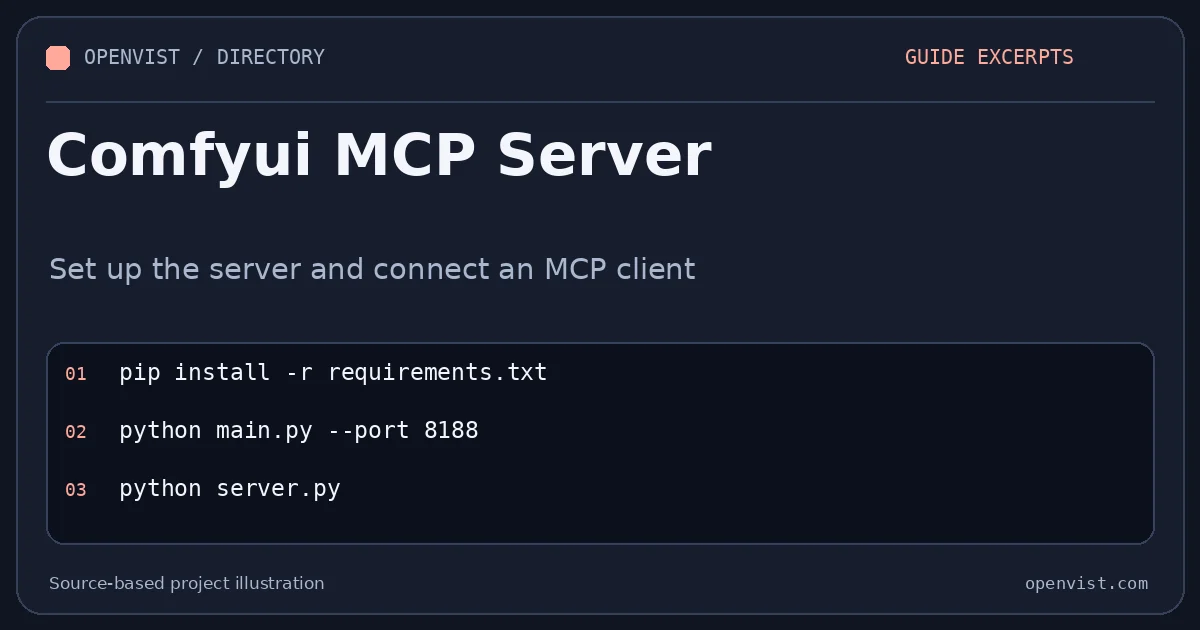
Set up the server and connect an MCP client
Run the server against local ComfyUI and configure an AI client to reach its MCP endpoint.
Before you start
- Python and the project requirements
- A locally installed ComfyUI instance
- An MCP-compatible AI client
Steps
Clone the repository, enter its directory and install dependencies with the command below.
pip install -r requirements.txtStart ComfyUI locally with the command below.
python main.py --port 8188Run the command below from the repository directory; the documented endpoint is
http://127.0.0.1:9000/mcp.python server.pyAdd that endpoint to the client's project-scoped
.mcp.jsonas a streamable HTTP server, then restart the client.
Expected outcome
The AI client can connect to the MCP server and call its available tools.
Guide limitations
- Some clients use
httprather thanstreamable-httpas the transport type. - The server binds to localhost by default; the README cautions against public exposure without authentication or a reverse proxy.
Try image generation with the included test client
Call the server's image-generation tool with a prompt, without configuring an AI client.
Before you start
- The repository dependencies installed
- ComfyUI running locally
- The MCP server running
Steps
From the repository directory, run the command below for the default prompt.
python test_client.pyTo provide a prompt, run the command below or use the documented
--promptoption.python test_client.py -p "a beautiful sunset over mountains"
Expected outcome
The test client lists tools and server defaults, calls `generate_image`, and prints asset information.
Guide limitations
- The prompt is the only required generation parameter in this test flow; other parameters use server defaults.
Sources & review
Source record details
- Source availability
- Active
- Sources checked
- 15 November 2026
- Original website title
- joenorton/comfyui-mcp-server · Official homepage title · retained in its source language