
Practical overview
When it fits
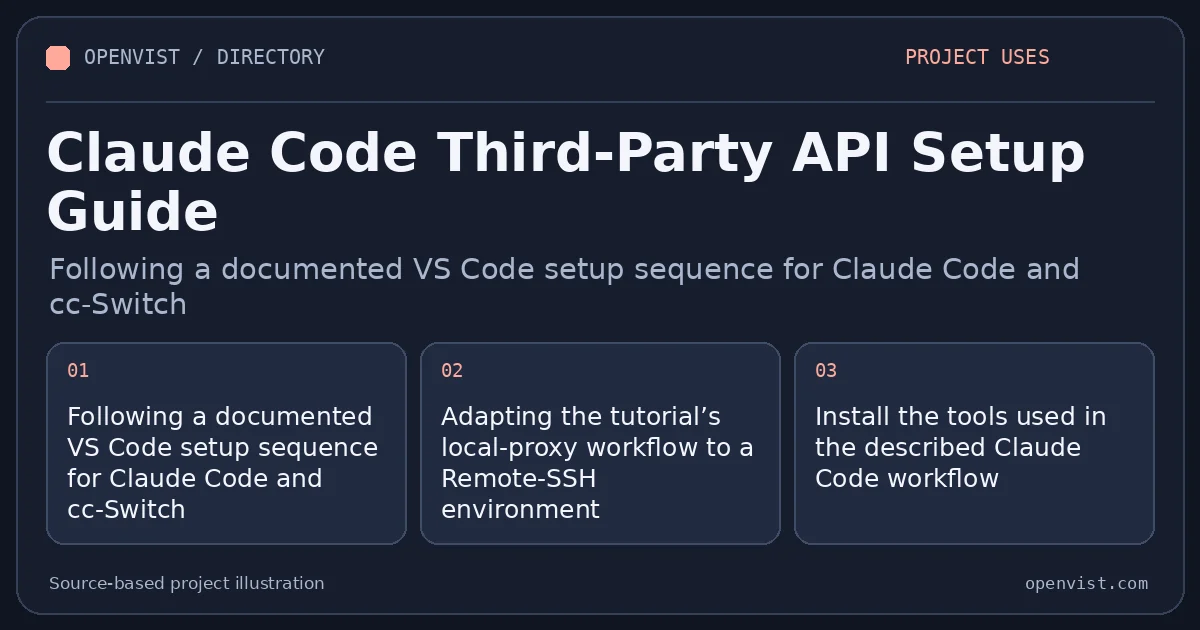
Use it when you need a walkthrough for connecting Claude Code to a third-party model endpoint through cc-Switch, including a Remote-SSH configuration.
Who it is for
- Developers setting up Claude Code with a third-party model API.
- VS Code users configuring Claude Code locally or in a Remote-SSH environment.
Documented uses
- Install the tools used in the described Claude Code workflow.
- Enter a provider’s API key, base URL and model name through cc-Switch.
- Configure a local proxy and SSH port forwarding for remote use.
Requirements & limits
- This repository provides instructions; cc-Switch is a separate client that must be obtained from its own release page.
- The provider configuration requires an API key, base URL and model name.
- The tutorial is written in Chinese and uses SiliconFlow as its worked provider example.
- The remote procedure depends on VS Code Remote-SSH, a local cc-Switch proxy and SSH port forwarding.
Check current requirements in the official documentation. Source-based guidance does not mean OpenViST has run or independently tested this project.
Set up a local third-party API configuration
Prepare VS Code, cc-Switch and Claude Code, then add a provider’s API details for local use.
Before you start
- VS Code
- The cc-Switch client
- The Claude Code VS Code extension
- A provider API key, base URL and model name
Steps
Install VS Code if needed, download a suitable cc-Switch release asset and install the client.
Install the Claude Code extension from the VS Code extension marketplace.
In cc-Switch, add a provider and enter its API key, base URL and model name.
Reopen the Claude Code extension and check whether it opens to the conversation view.
Expected outcome
A local Claude Code configuration directed to the provider details entered in cc-Switch.
Guide limitations
- SiliconFlow is the tutorial’s example; provider-specific credentials and base URLs must come from the provider.
- The guide describes an MSI installer in its installation steps.
Prepare a Remote-SSH configuration
Set up the tutorial’s local-proxy and SSH port-forwarding arrangement for Claude Code on a remote server.
Before you start
- The local cc-Switch client
- VS Code with the Remote-SSH extension
- Claude Code installed in the remote VS Code environment
- A provider configuration and the local proxy address and port
Steps
Enable cc-Switch’s local proxy and note the generated service address and port.
Use the tutorial’s stated terminal check to inspect the Claude settings file for proxy information.
Add a RemoteForward parameter to the VS Code SSH connection configuration.
Install the Claude Code extension on the remote server and enter the copied proxy address and key in its environment configuration.
Expected outcome
A remote Claude Code setup connected through the local proxy and SSH port forwarding, as described in the tutorial.
Guide limitations
- The guide presents this as a Remote-SSH workflow and requires the Remote-SSH extension.
- The tutorial uses screenshots for configuration details.
Sources & review
Source record details
- Source availability
- Active
- Sources checked
- 20 November 2026
- Original website title
- Golden-Promise/vscode-cc-switch · Official homepage title · retained in its source language