
Practical overview
When it fits
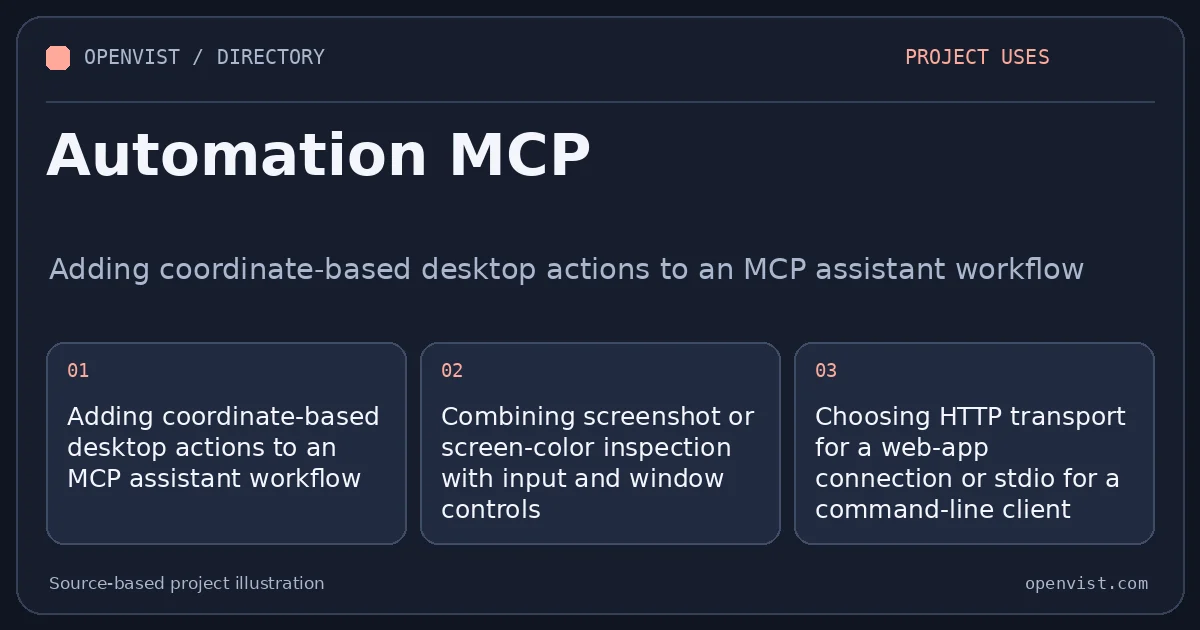
Use it when an MCP-connected assistant needs to interact with a Mac application's interface or inspect visible screen content, rather than relying only on an application's own interface or data connection.
Who it is for
- Developers connecting an MCP-compatible assistant to macOS desktop controls.
- Claude Desktop users configuring a local server through stdio.
- Web-app workflows that use the documented HTTP transport.
Documented uses
- Send mouse clicks, movement, scrolling and drags to desktop applications.
- Type text, issue key combinations and invoke common system shortcuts.
- Capture full screens, regions or windows and inspect screen dimensions or pixel colors.
- Focus, move, resize or minimize windows, and wait for a target image to appear.
Requirements & limits
The repository identifies the project as MIT-licensed. The documented setup requires macOS Accessibility permission for input and window controls and Screen Recording permission for screenshots and screen analysis.
- The server targets macOS and requires system privacy permissions for its relevant control and capture functions.
- The README documents both HTTP and stdio transports, with different suggested client contexts.
- The Bun-based setup is separate from the furi-based add-and-start route; furi is an external tool.
- The available actions include both coordinate-based interaction and template matching to wait for an image.
Check current requirements in the official documentation. Source-based guidance does not mean OpenViST has run or independently tested this project.
Set up Automation MCP with Bun
Install and start the server using the documented non-furi method.
Before you start
- A Mac running macOS
- Bun runtime
- An MCP client configured to connect to the server
Steps
Clone https://github.com/ashwwwin/automation-mcp.git and change into the automation-mcp directory.
Run bun install.
Start the server with bun run index.ts for HTTP transport, or bun run index.ts --stdio for stdio transport.
Grant macOS Accessibility and Screen Recording permissions when prompted, or enable them in System Settings → Privacy & Security.
Expected outcome
The MCP server starts with the selected transport, with permissions available for the documented desktop-control and screen-analysis functions.
Guide limitations
- Accessibility permission is required for mouse and keyboard control and window management.
- Screen Recording permission is required for screenshots and screen analysis.
Sources & review
Source record details
- Source availability
- Active
- Sources checked
- 15 November 2026
- Original website title
- ashwwwin/automation-mcp · Official homepage title · retained in its source language