
Practical overview
When it fits
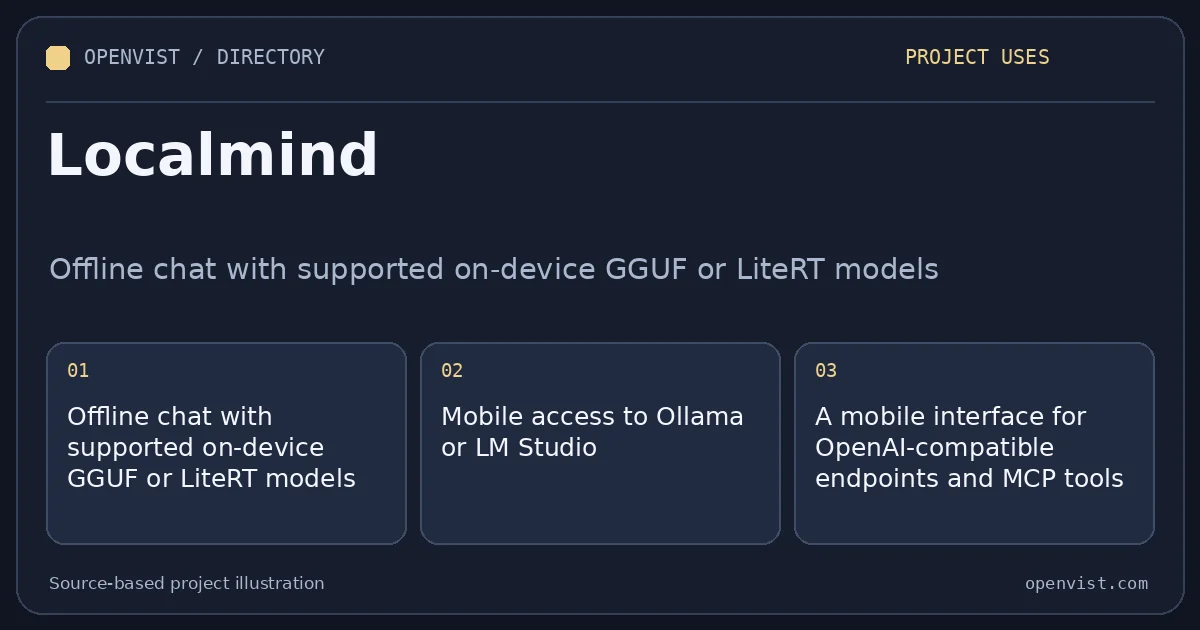
Use Localmind when you want mobile chat with an on-device model, an existing inference server or a supported cloud provider. Choose on-device inference for offline use; connect a server when its models are already hosted on a computer or service.
Who it is for
- Mobile users who want to chat with models running directly on their phone.
- People who already use Ollama, LM Studio or an OpenAI-compatible inference server.
- Developers seeking a Flutter mobile client with MCP tool support.
Documented uses
- Chat with supported GGUF or LiteRT models offline on a phone.
- Connect a mobile chat interface to a local or cloud model endpoint.
- Give a model access to tools through a local or remote MCP server.
- Organize and search conversations, save prompts, or edit and regenerate a message.
Requirements & limits
The repository links to the Apple App Store, Google Play and GitHub releases, and identifies the project as open source under the MIT license.
- On-device model support is described for GGUF and LiteRT; model and device compatibility may vary.
- Using a computer-hosted Ollama or LM Studio server requires network access configured for the local network.
- OpenRouter, Requesty and Standard Compute are listed as cloud backends with the user's API key.
- The app is built with Flutter; source setup specifies FVM and Flutter 3.44.2.
Check current requirements in the official documentation. Source-based guidance does not mean OpenViST has run or independently tested this project.
Build and launch Localmind from source
Set up the Flutter project and start it on an Android or iOS device or emulator.
Before you start
- FVM
- Android Studio or Xcode
- An Android or iOS device or emulator
Steps
Clone the Localmind repository and change into its directory.
Run
fvm installto install the pinned Flutter version.Run
fvm flutter pub getto fetch dependencies.Run
fvm flutter runto launch the app.
Expected outcome
The project is set up and launched on the selected device or emulator.
Guide limitations
- This guide covers setup and launch only; it does not verify a successful build or runtime.
- A local inference server is optional for on-device model use.
Prepare a computer-hosted Ollama or LM Studio server for Localmind
Configure a computer-hosted server to accept connections from a phone on the local network.
Before you start
- An Ollama or LM Studio server running on a computer
- The computer's LAN IP address
Steps
Use the computer's LAN IP address as the server address in the mobile connection, rather than
localhost.For Ollama, set
OLLAMA_HOST=0.0.0.0so it listens on network interfaces.For LM Studio, turn on “Serve on Local Network.”
Expected outcome
The server is configured for local-network connections from the mobile app.
Guide limitations
- The instructions do not establish setup details for other network configurations or guarantee a connection.
Sources & review
Source record details
- Source availability
- Active
- Sources checked
- 21 November 2026
- Original website title
- abdulmominsakib/localmind · Official homepage title · retained in its source language