
Practical overview
When it fits
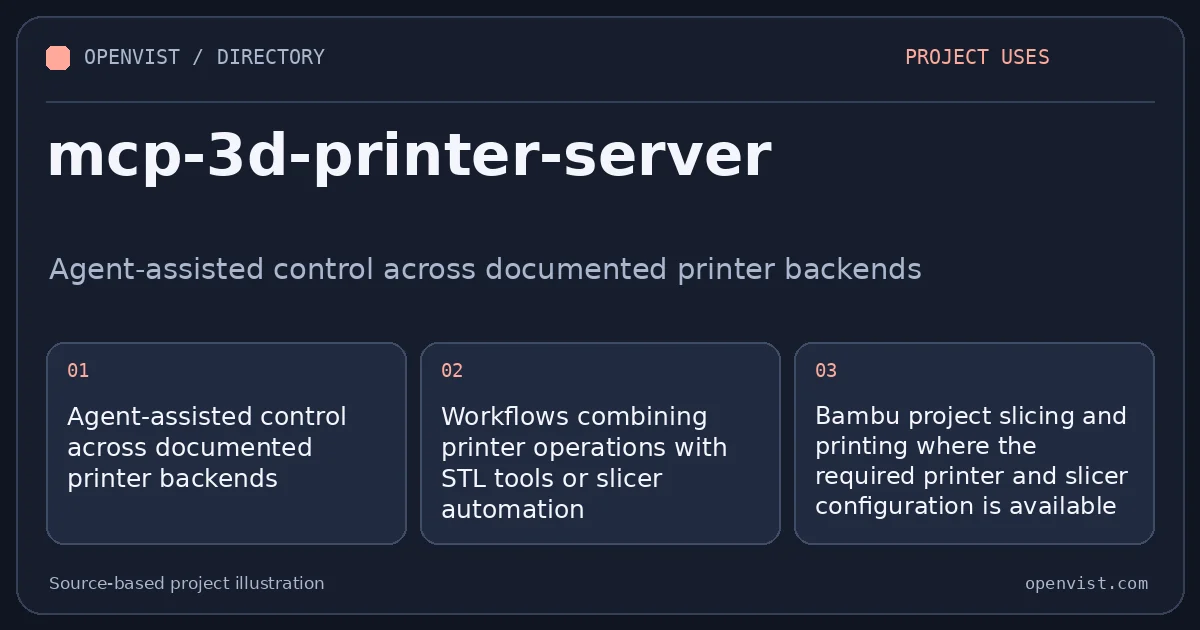
Use it when an MCP-compatible client needs to interact with a supported printer system or assist with mesh and slicing work, and you can configure the relevant backend and tools.
Who it is for
- Developers connecting an MCP-compatible agent client to supported 3D printers.
- Printer owners who want an agent to assist with status checks, print jobs, or model and slicing workflows.
Documented uses
- Check printer status and temperatures, and manage printer files.
- Upload, start, or cancel print jobs through a configured backend.
- Edit STL meshes and run a configured slicer.
- Pass models to Blender through an optional Blender MCP bridge.
Requirements & limits
- The agent client must support MCP; documented examples include Claude and Codex.
- Select a default backend with PRINTER_TYPE; printer tools also accept a per-call type and host.
- Backend requirements and reported testing differ. Duet, Repetier-Server, and Creality are described as implemented without hardware reports; Bambu Lab has the most testing in the documentation.
- Bambu print operations require printer host, serial, token, and model settings. The optional FULU BambuNetwork route requires separate configuration and is not selected automatically.
- FULU OrcaSlicer-bambulab must be selected explicitly for Bambu slicing; Bambu Studio is the default slicer.
Check current requirements in the official documentation. Source-based guidance does not mean OpenViST has run or independently tested this project.
Set up FULU OrcaSlicer on Linux for Bambu projects
Configure the server to use a FULU OrcaSlicer-bambulab installation for Bambu Lab project slicing.
Before you start
- A Bambu Lab printer configuration (PRINTER_TYPE=bambu).
- A FULU OrcaSlicer-bambulab installation and its executable path.
- The FULU runtime payload directory.
Steps
Set PRINTER_TYPE=bambu, SLICER_TYPE=orcaslicer-bambulab, SLICER_PATH to the FULU executable, and FULU_ORCA_PLUGIN_DIR to the runtime payload directory.
Install the FULU OrcaSlicer-bambulab build normally and ensure the executable path points to that installation.
Ask the MCP client to call check_fulu_orca_setup to inspect the executable, runtime payload, setup commands, and optionally the bridge handshake.
Expected outcome
The server is configured to select FULU OrcaSlicer-bambulab, and the setup check reports detected installation and payload status.
Guide limitations
- Bambu print operations still require PRINTER_HOST, BAMBU_SERIAL, BAMBU_TOKEN, and BAMBU_MODEL; fresh printer state is read over LAN MQTT before every print.
- FULU v1.0.0 command-line slicing has reported crashes until FULU fixes #56 and #57; Bambu Studio remains the documented fallback.
- The Linux bridge host requires its networking plug-in files; the v1.0.0 host has documented upstream issues.
Install and verify the FULU runtime on Windows
Run FULU's documented runtime installation and verification scripts from the package directory.
Before you start
- Windows with the FULU package containing install_runtime.ps1 and verify_runtime.ps1.
- Permission to enable Windows Subsystem for Linux and the virtual machine platform, and to restart Windows.
Steps
Enable Windows Subsystem for Linux and the virtual machine platform using the documented DISM commands.
Restart Windows.
From the directory containing install_runtime.ps1, run install_runtime.ps1 with PackageDir and PluginDir set to the current directory.
Run verify_runtime.ps1 with PackageDir and PluginDir set to the current directory.
Expected outcome
FULU's Windows runtime installation and verification scripts have been run for the package directory.
Guide limitations
- The full Windows path still needs real reports covering runtime installation, verification, bridge probing, CLI slicing, and a known-safe print workflow.
Sources & review
Source record details
- Source availability
- Active
- Sources checked
- 15 November 2026
- Original website title
- mcp-3d-printer-server | MCP server for 3D printers · Official homepage title · retained in its source language