
Practical overview
When it fits
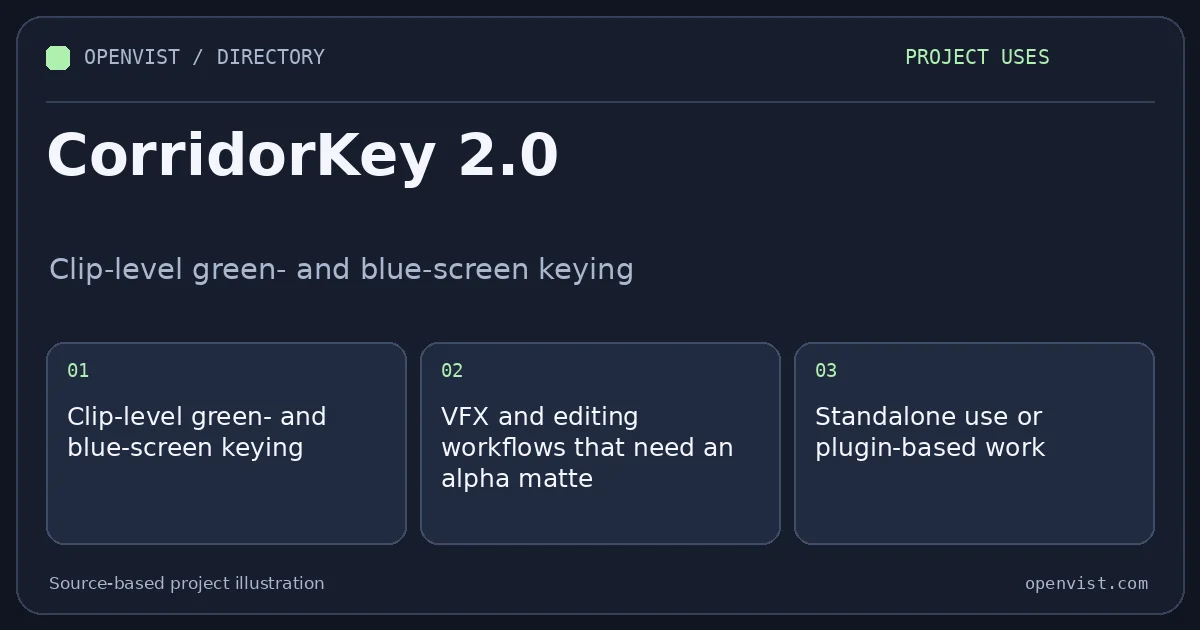
Use CorridorKey when preparing green- or blue-screen footage for compositing, particularly when fine or blurred details need to be retained.
Who it is for
- Video editors and VFX artists working with green- or blue-screen footage
- Users who need to key challenging details such as hair, motion blur, defocus or glass
- Teams seeking a standalone keying app or a plugin workflow
Documented uses
- Remove a green or blue background from footage.
- Generate an alpha matte across a clip for compositing.
- Seek help with installation, licensing, panel use or rendering in a host application.
Requirements & limits
The homepage describes the product as a one-time purchase with no subscription. Windows and macOS are listed as platforms.
- Choose between the standalone application and plugin workflow based on how you prepare footage.
- Support documentation lists DaVinci Resolve, Nuke, After Effects, Premiere Pro and Blender as support contexts; it does not specify host-version compatibility.
- The support file is created locally and must be attached manually if sent to support.
Check current requirements in the official documentation. Source-based guidance does not mean OpenViST has run or independently tested this project.
Create and attach a local support file
Prepare CorridorKey diagnostics to include with a support request.
Before you start
- CorridorKey panel available in the host application
- Access to the CorridorKey support form
Steps
Open the CorridorKey panel in the host application.
Expand Help & Support and press Create support file once to preview the collection in the Status line.
Press Create support file again to package the local diagnostics and note where the file was saved.
Attach the file to a support request if you choose.
Expected outcome
A local support file containing CorridorKey logs, versions and performance records is ready to attach to a request.
Guide limitations
- The file is not sent automatically.
- The instructions say it excludes project media, screenshots and unrelated files.
Sources & review
Source record details
- Source availability
- Active
- Sources checked
- 15 November 2026
- Original website title
- CorridorKey 2.0 | Neural Green & Blue Screen Keyer · Official homepage title · retained in its source language