
Practical overview
When it fits
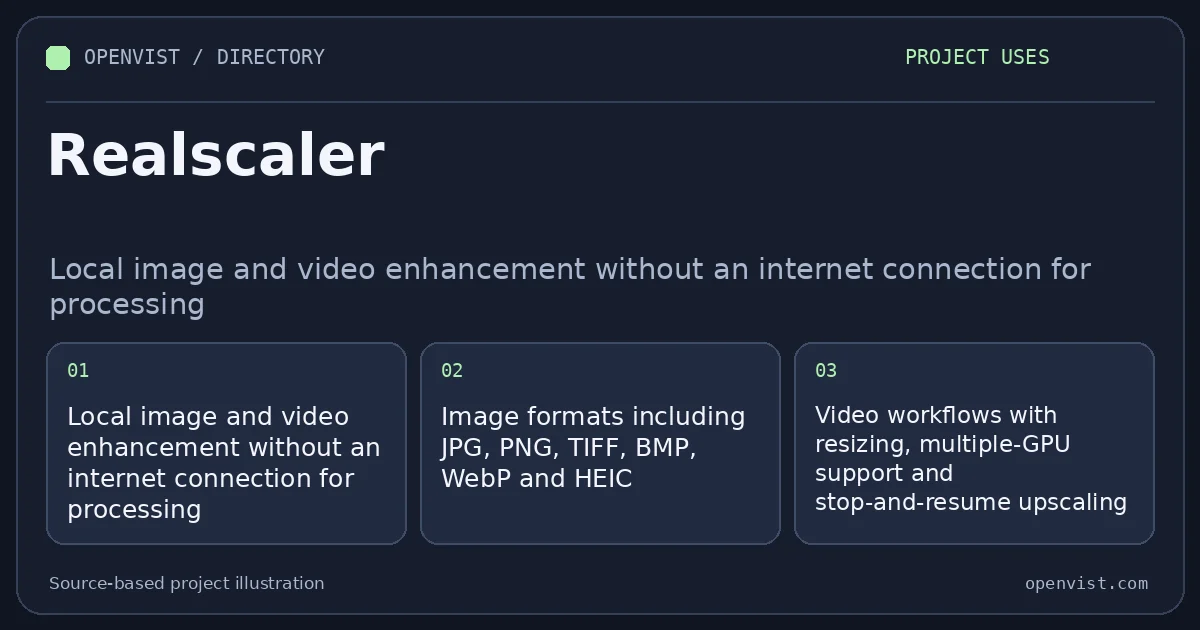
Use it when a Windows workflow needs local AI upscaling or denoising for supported images or video, including video jobs that may need stopping and resuming.
Who it is for
- Windows users who want to upscale or denoise image files.
- People processing video clips who need upscaling, resizing or stop-and-resume processing.
- Developers who want to prepare the Python project from source using the listed tools and files.
Documented uses
- Upscale or denoise supported photo formats.
- Upscale video clips and select an output scaling resolution.
- Resize media before upscaling or compare original and processed results through interpolation.
- Prepare the project files and dependencies for opening the Python application in VS Code.
Requirements & limits
- Requires Windows 10 or 11, at least 8 GB RAM and a DirectX 12-compatible GPU with at least 4 GB VRAM.
- The repository identifies an MIT license and Python implementation.
- Source setup requires separately obtained AI models and FFmpeg.exe, as well as Python and VS Code.
Check current requirements in the official documentation. Source-based guidance does not mean OpenViST has run or independently tested this project.
Prepare the RealScaler project in VS Code
Set up the downloaded project files and dependencies for opening RealScaler.py in VS Code.
Before you start
- Windows 10 or 11
- Python installed
- VS Code installed
- AI model files
- FFmpeg.exe
Steps
Download the project as a ZIP and extract it.
Place the extracted AI model files in the AI-onnx folder and FFmpeg.exe in the Assets folder.
Open the project directory in VS Code and select RealScaler.py.
In VS Code's Terminal panel, run pip install -r requirements.txt.
Close and reopen VS Code to refresh dependencies.
Expected outcome
The project files and listed dependencies are prepared, with RealScaler.py open in VS Code.
Guide limitations
- This documented process covers source setup, not successful execution or media processing.
- The README also lists a DirectX 12-compatible GPU with at least 4 GB of VRAM and at least 8 GB of RAM as system requirements.
Sources & review
Source record details
- Source availability
- Active
- Sources checked
- 14 November 2026
- Original website title
- Djdefrag/RealScaler · Official homepage title · retained in its source language