
Practical overview
When it fits
Use it when a ComfyUI workflow needs VoxCPM text-to-speech, voice design or audio-based cloning, or when you want to connect those stages to other ComfyUI nodes.
Who it is for
- ComfyUI users building text-to-speech or voice-cloning workflows.
- Audio workflow creators who want to combine VoxCPM speech generation with other ComfyUI nodes.
- Users who want to configure or train LoRA models using the included nodes.
Documented uses
- Generate speech from text with a selected VoxCPM model.
- Create a voice from a natural-language description with VoxCPM2.
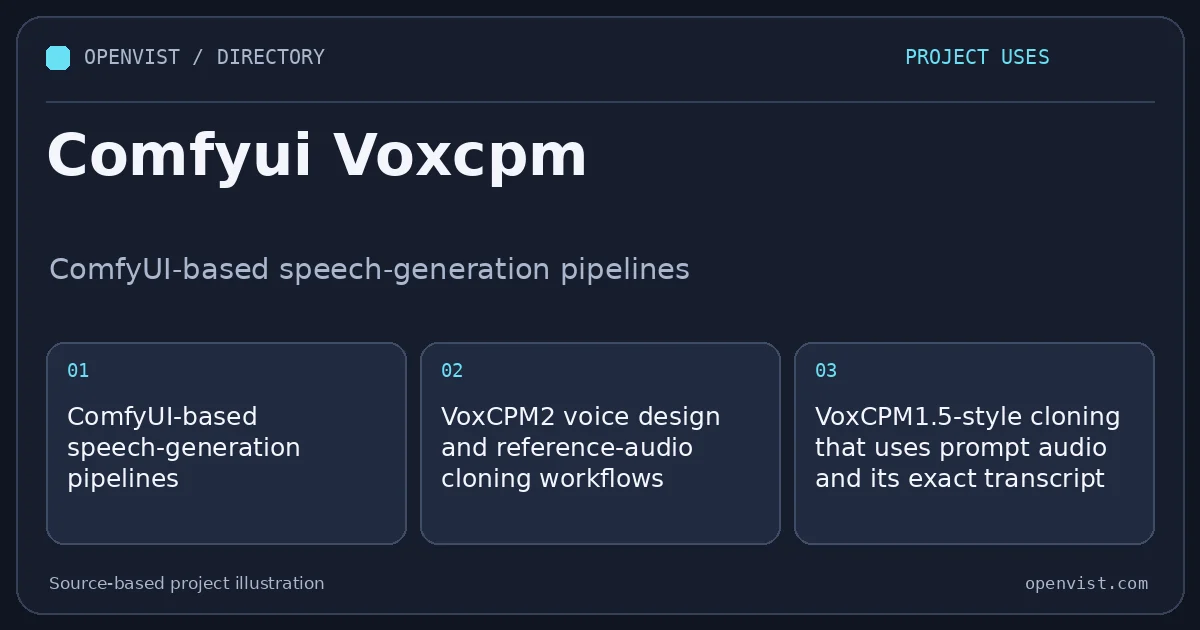
- Clone a voice using reference or prompt audio, with transcript requirements depending on the workflow.
- Configure audio datasets and train or apply LoRA models.
Requirements & limits
The repository is public and licensed under Apache-2.0. Installation is described through ComfyUI Manager or manually in an existing ComfyUI installation.
- The node depends on ComfyUI and is not presented as a standalone speech application.
- Model specifications vary: the repository lists VoxCPM2 at 48 kHz and 30+ languages, VoxCPM1.5 at 44.1 kHz and two languages, and VoxCPM-0.5B at 16 kHz and two languages.
- For the VoxCPM1.5-style cloning workflow, prompt_text must match the prompt audio word for word; the repository recommends 5–15 seconds of clear speech.
- VoxCPM2 reference cloning can use reference audio without a transcript, while ultimate cloning combines reference audio for identity with prompt audio and transcript for prosody.
- The built-in ZipEnhancer denoiser is disabled by default.
Check current requirements in the official documentation. Source-based guidance does not mean OpenViST has run or independently tested this project.
Install the ComfyUI-VoxCPM custom node manually
Add the VoxCPM nodes to an existing ComfyUI installation.
Before you start
- An existing ComfyUI installation.
- Python and pip, as used in the repository's installation instructions.
Steps
Open a terminal in ComfyUI's custom_nodes directory.
Clone the ComfyUI-VoxCPM repository.
Enter the cloned directory and install its requirements with pip.
Restart ComfyUI; the nodes appear under audio/tts.
Expected outcome
The VoxCPM nodes are available in ComfyUI, and the models download to ComfyUI/models/tts/VoxCPM/ on first use.
Guide limitations
- This guide covers installation and node discovery, not a successful generation run.
- The repository also offers installation through ComfyUI Manager.
Generate speech from text with the VoxCPM TTS node
Set up the documented basic zero-shot text-to-speech workflow.
Before you start
- ComfyUI with the ComfyUI-VoxCPM nodes installed.
Steps
Add the VoxCPM TTS node to the workflow.
Select a model.
Enter the text.
Generate.
Expected outcome
The documented workflow uses the selected VoxCPM model to generate speech from entered text.
Guide limitations
- The repository does not specify hardware requirements or a guaranteed generation result.
- Model language and sample-rate specifications differ by model.
Sources & review
Source record details
- Source availability
- Active
- Sources checked
- 11 November 2026
- Original website title
- wildminder/ComfyUI-VoxCPM · Official homepage title · retained in its source language