
Practical overview
When it fits
Use it when a compatible MCP client needs a configured, reachable Prometheus instance as a source for metric queries and analysis.
Who it is for
- Developers connecting an MCP-compatible AI client to Prometheus metrics.
- Platform and observability teams that want assistant-led metric queries or analysis workflows.
- Kubernetes operators deploying the MCP server with its Helm chart.
Documented uses
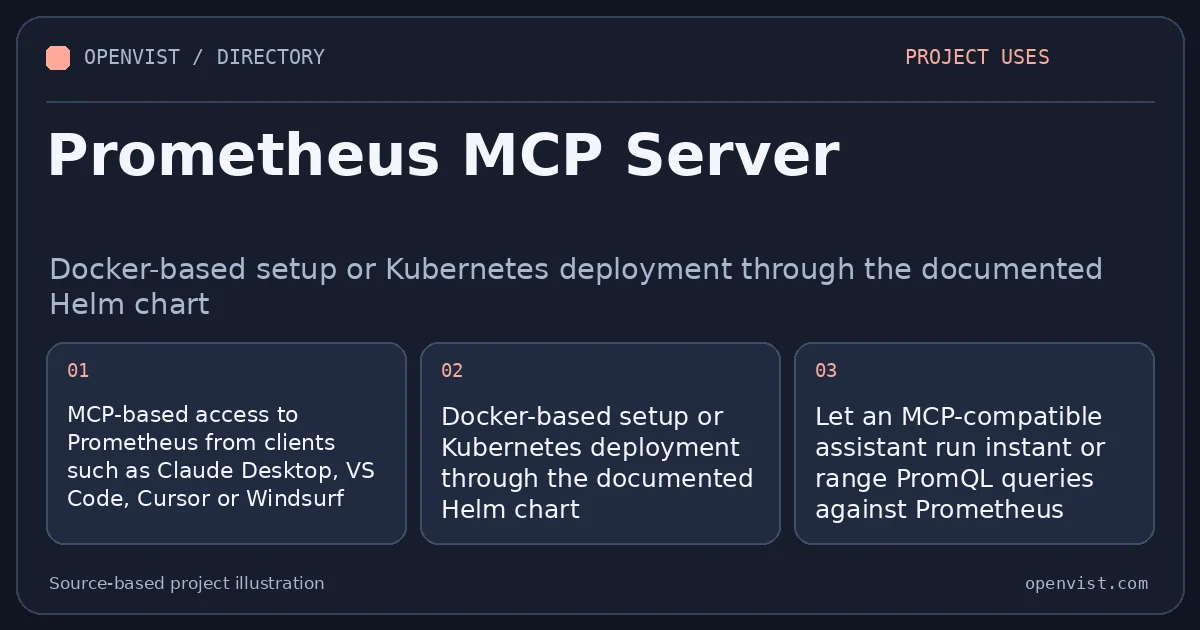
- Let an MCP-compatible assistant run instant or range PromQL queries against Prometheus.
- Discover available Prometheus metrics for analysis.
- Make Prometheus data available as input to AI-assisted observability workflows.
- Deploy the MCP server as a container or through a Kubernetes Helm chart.
Requirements & limits
The public repository identifies the project as open source under the MIT license. Its documented distribution options include a GitHub Container Registry image and an OCI Helm chart.
- A reachable Prometheus server and an MCP-compatible client are required for the documented use.
- PROMETHEUS_URL is the required connection setting; authentication and TLS options are configurable when needed.
- The server supports stdio, HTTP and SSE transports; HTTP bind settings and stateless mode are configurable.
- Docker-based client configuration and Kubernetes Helm installation are both documented.
- The repository identifies Python 3.10+.
Check current requirements in the official documentation. Source-based guidance does not mean OpenViST has run or independently tested this project.
Connect a Docker-hosted server to an MCP client
Configure an MCP client to start the server container with access to your Prometheus instance.
Before you start
- Docker
- A Prometheus server reachable from the environment running the container
- An MCP-compatible client such as Claude Desktop, VS Code, Cursor or Windsurf
- The client’s MCP configuration settings
Steps
Set the required PROMETHEUS_URL to the URL of your Prometheus server.
Add an MCP server entry to the client configuration using the documented Docker command, image ghcr.io/pab1it0/prometheus-mcp-server:latest, and PROMETHEUS_URL environment variable.
Use the MCP client to access the configured server and its Prometheus tools.
Expected outcome
The MCP client is configured to connect to Prometheus through the server, whose documented tools include instant and range PromQL queries and metric listing.
Guide limitations
- The Prometheus server must be reachable from the environment running the container.
- Authentication settings are additional configuration when required by the Prometheus instance.
- The repository provides configuration instructions; this guide does not imply a tested connection.
Install the server with Helm
Install the MCP server chart in Kubernetes and provide its Prometheus URL.
Before you start
- A Kubernetes environment with Helm available
- A Prometheus URL reachable from the deployment
Steps
Install the chart from oci://ghcr.io/pab1it0/charts/prometheus-mcp-server using the documented chart version 1.1.1.
Set prometheus.url to the address of the Prometheus server during installation.
For authenticated Prometheus access, provide the chart’s documented auth.username and auth.password values or use a custom values file.
Expected outcome
The chart installation is configured with a Prometheus endpoint; the repository points to chart values for further configuration.
Guide limitations
- The instructions do not cover provisioning Kubernetes or Prometheus itself.
- Authentication credentials and other deployment-specific values must be supplied where needed.
Sources & review
Source record details
- Source availability
- Active
- Sources checked
- 11 November 2026
- Original website title
- pab1it0/prometheus-mcp-server · Official homepage title · retained in its source language