
Practical overview
When it fits
Use it when you have LM Studio serving the Orpheus model and want to generate speech from a text input to a WAV file without cloud API keys.
Who it is for
- People who want a command-line workflow for local text-to-speech generation.
- Python users who want to select a voice, adjust sampling settings or add supported emotion tags to speech input.
Documented uses
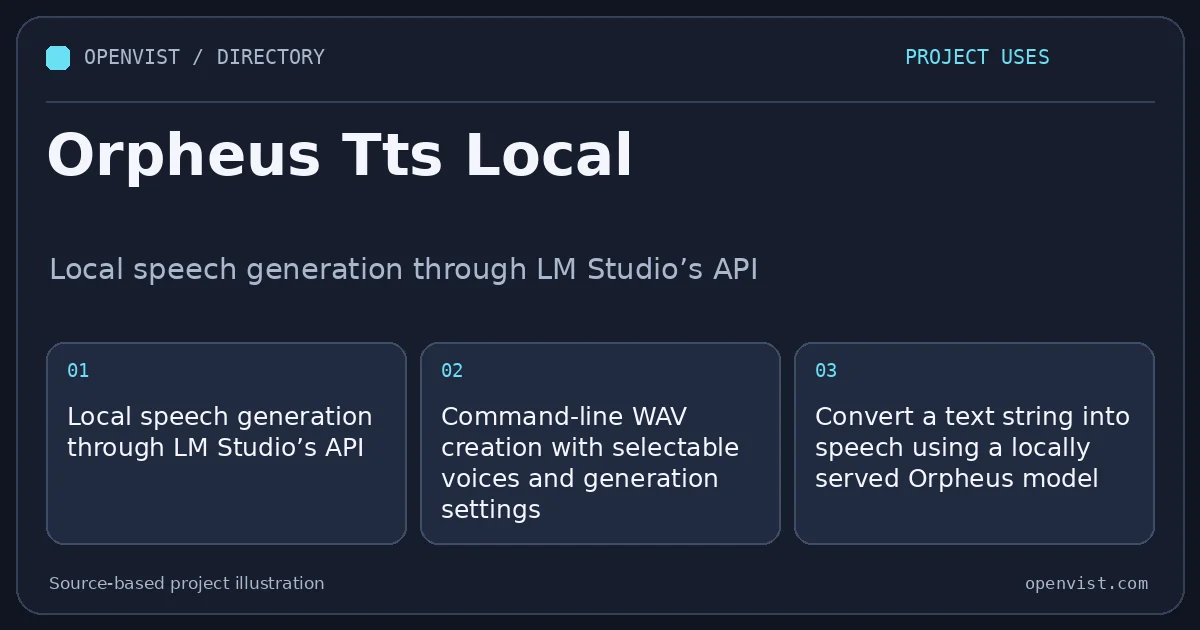
- Convert a text string into speech using a locally served Orpheus model.
- Choose among eight listed voices and set a WAV output path.
- Adjust temperature, top-p and repetition-penalty generation parameters.
- Include documented emotion tags such as , or in text.
Requirements & limits
The project is a public GitHub repository licensed under Apache 2.0. Its README says the workflow runs locally and does not need cloud API keys.
- Requires LM Studio, the specified Orpheus GGUF model, and a Python environment with project dependencies installed.
- The README lists eight voice options and temperature, top-p and repetition-penalty parameters.
- Emotion tags are entered as part of the text; examples include laugh, sigh, gasp and yawn.
- The documented input is a single text string; batch processing is not described.
Check current requirements in the official documentation. Source-based guidance does not mean OpenViST has run or independently tested this project.
Set up and generate a WAV from text
Configure the local LM Studio and Python prerequisites, then generate speech from a text input.
Before you start
- LM Studio
- The orpheus-3b-0.1-ft-q4_k_m.gguf model downloaded and loaded in LM Studio
- Python 3 and the project files, including requirements.txt
Steps
Start the local server in LM Studio; the README gives http://127.0.0.1:1234 as the default address.
Create and activate a Python virtual environment, then install dependencies with pip install -r requirements.txt.
Run python gguf_orpheus.py --text "Your text here" --voice tara --output "output.wav".
Expected outcome
The script is configured to generate speech from the supplied text and save it to the chosen WAV path.
Guide limitations
- The documented command takes a single text input; batch processing is not described.
- The README provides setup and usage instructions, not a guarantee that a particular local environment will work.
Sources & review
Source record details
- Source availability
- Active
- Sources checked
- 11 November 2026
- Original website title
- isaiahbjork/orpheus-tts-local · Official homepage title · retained in its source language