
Practical overview
When it fits
Use Nexus when an AI assistant or team needs a central connection point for multiple MCP servers, or when applications need a consistent route to configured LLM providers.
Who it is for
- Developers consolidating MCP tools behind one assistant connection.
- Teams seeking centralized access to configured model providers and tools.
- Organizations configuring authentication and oversight for AI infrastructure.
Documented uses
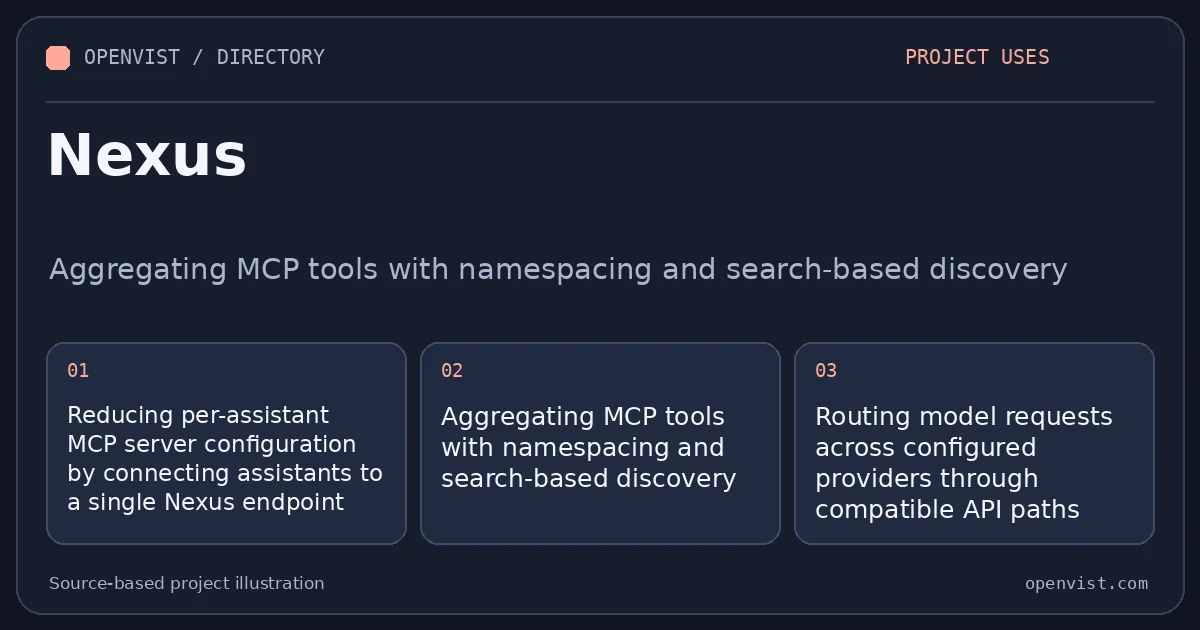
- Expose tools from multiple MCP servers through one assistant-facing endpoint.
- Search aggregated tools and execute a selected tool without listing every server tool directly to the assistant.
- Access configured OpenAI, Anthropic and Google models through Nexus routing interfaces.
- Manage authentication and monitoring for configured model and tool connections.
Requirements & limits
The documentation provides installation through a script or Docker and examples for connecting Cursor and Claude Desktop to a local MCP endpoint.
- MCP routing and LLM routing are separate capabilities and can be configured independently.
- MCP connections can use STDIO, SSE or HTTP; server definitions and credentials must be configured for the selected servers.
- LLM providers and models must be explicitly configured, with provider credentials supplied.
- The assistant-facing MCP interface presents search and execute tools for discovering and running aggregated tools.
- Documented security configuration includes OAuth2 authentication, downstream token forwarding and TLS options.
Check current requirements in the official documentation. Source-based guidance does not mean OpenViST has run or independently tested this project.
Configure Nexus as a shared MCP endpoint
Aggregate MCP servers behind one endpoint and connect an assistant to it.
Before you start
- Nexus installed using the documented install script or Docker command.
- A nexus.toml configuration file with MCP enabled and the server connections to expose.
- An AI assistant configured to connect to Nexus over HTTP.
Steps
Install or run Nexus using one of the documented methods.
Add MCP settings and server definitions to nexus.toml; the examples include a local filesystem server and a remote GitHub server.
Start Nexus with the default settings or specify the configuration file with nexus --config ./nexus.toml.
Configure Cursor or Claude Desktop to use the Nexus MCP endpoint.
Expected outcome
The assistant connects to a single Nexus MCP endpoint and can use Nexus search to find aggregated tools and execute to run a selected tool.
Guide limitations
- The guide documents endpoint setup and assistant connection; server-specific credentials and configuration depend on the MCP servers selected.
- The example assistant configuration uses a local Nexus address, http://localhost:8000/mcp.
Configure model-provider routing
Expose configured LLM providers through Nexus’s compatible API endpoints.
Before you start
- Nexus installed and configured with a nexus.toml file.
- Provider API credentials for the model services being configured.
- Explicit provider and model definitions in the configuration.
Steps
Enable LLM routing and the required OpenAI- or Anthropic-compatible protocol path in nexus.toml.
Add provider entries and API-key references, then explicitly define the models to make available.
Start Nexus with the configuration file.
Use the documented model-list or chat-completions route to access configured models.
Expected outcome
Configured models are exposed through Nexus’s API interface; the documentation shows listing models and sending a chat-completions request.
Guide limitations
- The quick-start examples configure OpenAI and Anthropic; provider credentials and model names must match the services configured.
- The documented request examples use a local Nexus address.
Sources & review
Source record details
- Source availability
- Active
- Sources checked
- 8 November 2026
- Original website title
- The AI Router – Nexus · Official homepage title · retained in its source language