
Practical overview
When it fits
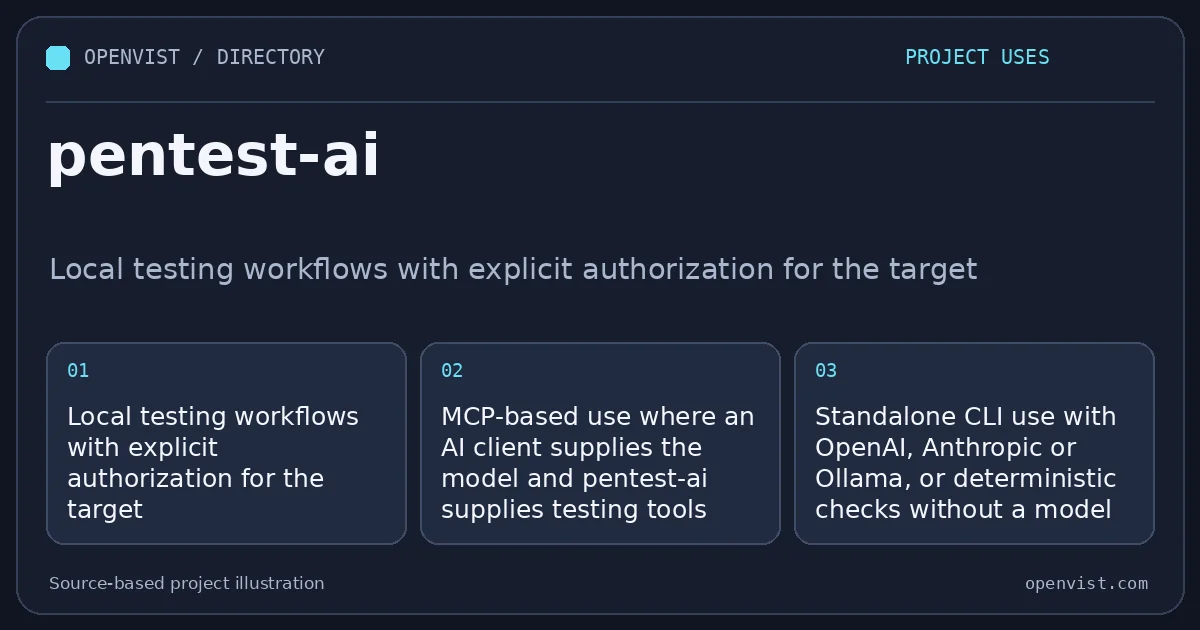
Use it when you need a local CLI-based assessment, want an MCP client to call testing and verification tools, or need to recheck candidate vulnerabilities under the conditions tested.
Who it is for
- Security practitioners assessing applications they are authorized to test.
- Developers and security teams who want to connect local testing tools to an MCP-compatible AI client.
- Users who want to try the bundled local demo before configuring a model or testing an authorized target.
Documented uses
- Run local AI-assisted penetration tests against an authorized application.
- Connect Codex, Claude Code or another local stdio MCP client to pentest-ai tools.
- Recheck candidate vulnerabilities and distinguish verified findings from unverified possibilities.
- Retain or replay proof capsules and export findings as SARIF.
Requirements & limits
The software is free and open source under the MIT licence. The primary workflow runs locally; the terms state there are no hosted accounts or managed testing service.
- Python 3.10–3.14 is required; pipx is recommended for regular use, with an activated virtual environment as an alternative.
- MCP use requires installing an AI client separately and keeping the pentest-ai Python environment available to launch its server.
- Standalone model use requires provider configuration; provider API calls can incur charges. Deterministic checks can run with --no-llm.
- A verified finding has passed an independent oracle check under tested conditions; a clean scan is not proof that an application has no vulnerabilities.
- Optional scanner wrappers require the corresponding tools to be installed.
Check current requirements in the official documentation. Source-based guidance does not mean OpenViST has run or independently tested this project.
Install pentest-ai and try its local demo
Set up the CLI and run the bundled demo against its local test application.
Before you start
- Python 3.10–3.14
- pipx, or an activated virtual environment
Steps
Install pipx, run pipx ensurepath, and reopen the terminal if PATH changed.
Install the CLI with pipx install ptai, or use the documented pip command in an activated virtual environment.
Run ptai demo to start the local test application, check its planted weaknesses, replay a finding and compare results with hardened routes.
Expected outcome
The demo produces ptai-demo-capsule.json in the working directory; its temporary server ends with the command.
Guide limitations
- This is a local demo, not an engagement against an external target.
- The capsule is an example evidence file, not a permanently running target.
- A clean scan does not prove an application is free of vulnerabilities.
Connect pentest-ai to Codex or Claude Code
Install the CLI and register its local MCP server with detected supported clients.
Before you start
- Python 3.10–3.14
- pipx and its application directory on PATH
- Codex or Claude Code installed, with its CLI command on PATH
Steps
Install the CLI with pipx install ptai.
Run ptai setup --mcp and review the detected clients and proposed settings before confirming.
Restart the client after configuration; keep the Python environment containing ptai available so it can launch the MCP server.
Expected outcome
The configured client can call pentest-ai tools through its local MCP server; the client provides model access.
Guide limitations
- The wizard uses user-wide settings and configures all detected supported clients; it does not install clients, sign in, download models or configure Ollama.
- The wizard has no project-scope option. Use client-specific project configuration when project scope is needed.
- An app that accepts only remote connectors cannot directly launch this local stdio command.
Sources & review
Source record details
- Source availability
- Active
- Sources checked
- 3 November 2026
- Original website title
- pentest-ai · the AI pentester that proves its findings · Official homepage title · retained in its source language